







































Work orders
Field service and repair jobs: a customer's job with its visit window, site and crew, the parts and services used, the technician's time, worksheets and the customer's sign-off, then one invoice when it is done.
| At a glance | |
|---|---|
| Type | Business module |
| Group | Serve |
| Needs | Nothing. A completed job is invoiced as an ordinary order and invoice. |
| Included in | Repairs & field service and others |
| Offered to | Every industry pack |
| Permissions | View all jobs (work_orders.view), Manage jobs (work_orders.manage), View own jobs (work_orders.view_own) |
A workspace's words apply: a field-service workspace calls them Jobs.
Switching it on
Workspace → Modules → Work orders → Enable (needs Manage modules). Work orders (or Jobs), My jobs today and Equipment appear under Serve, and Settings gains its page.
Jobs
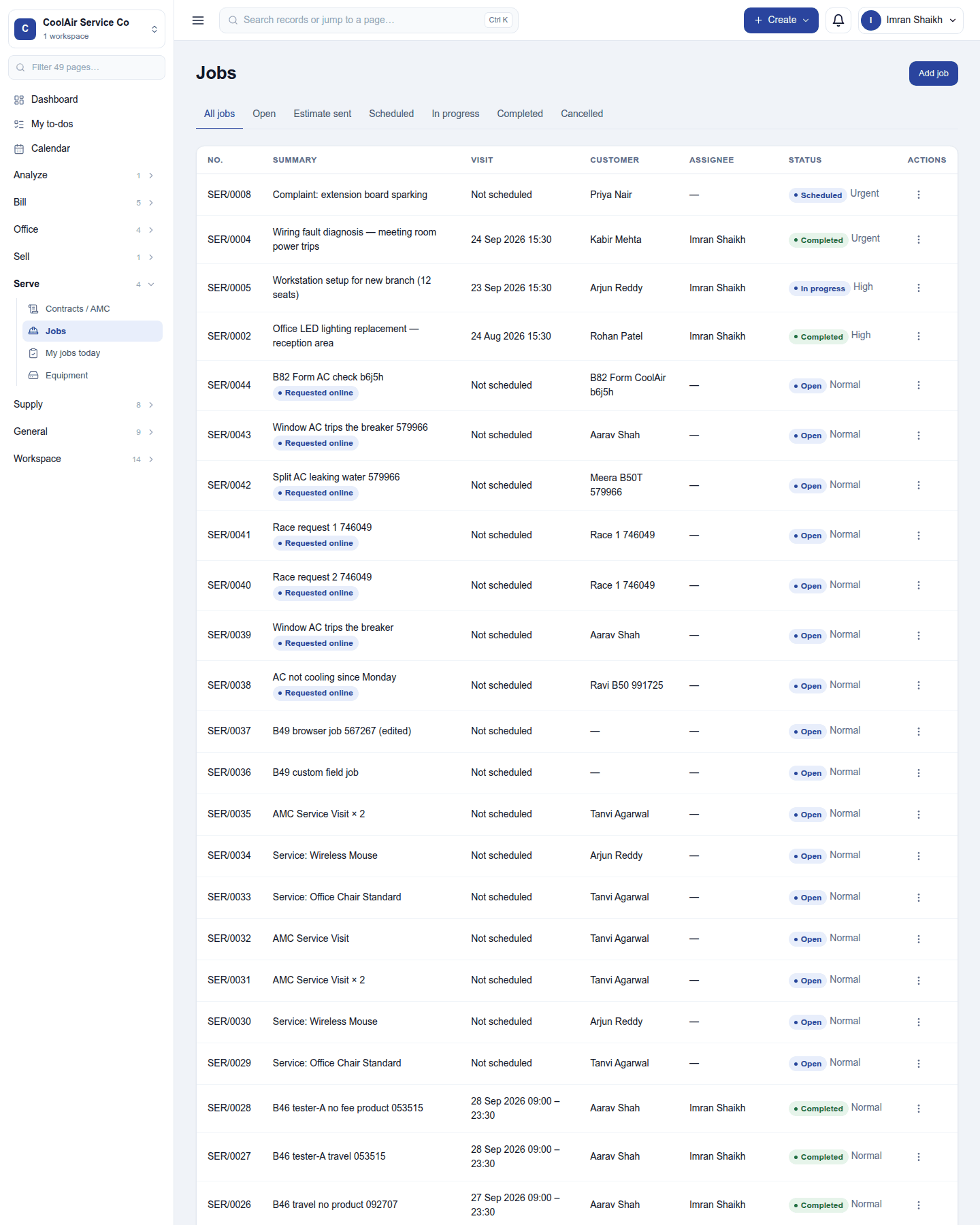
The list shows each job (SER/…) with its summary, visit window, customer, assignee, status and priority. The tabs filter All jobs / Open / Estimate sent / Scheduled / In progress / Completed / Cancelled. A job the customer asked for through the online service form reads Requested online.
Add job asks for the summary, customer, assignee (the lead technician), priority, the visit window (start and end, on the workspace's clock), the site (one of the customer's addresses, copied onto the job) and the crew (other technicians on the visit).
A job
Click a job to open it below the list:
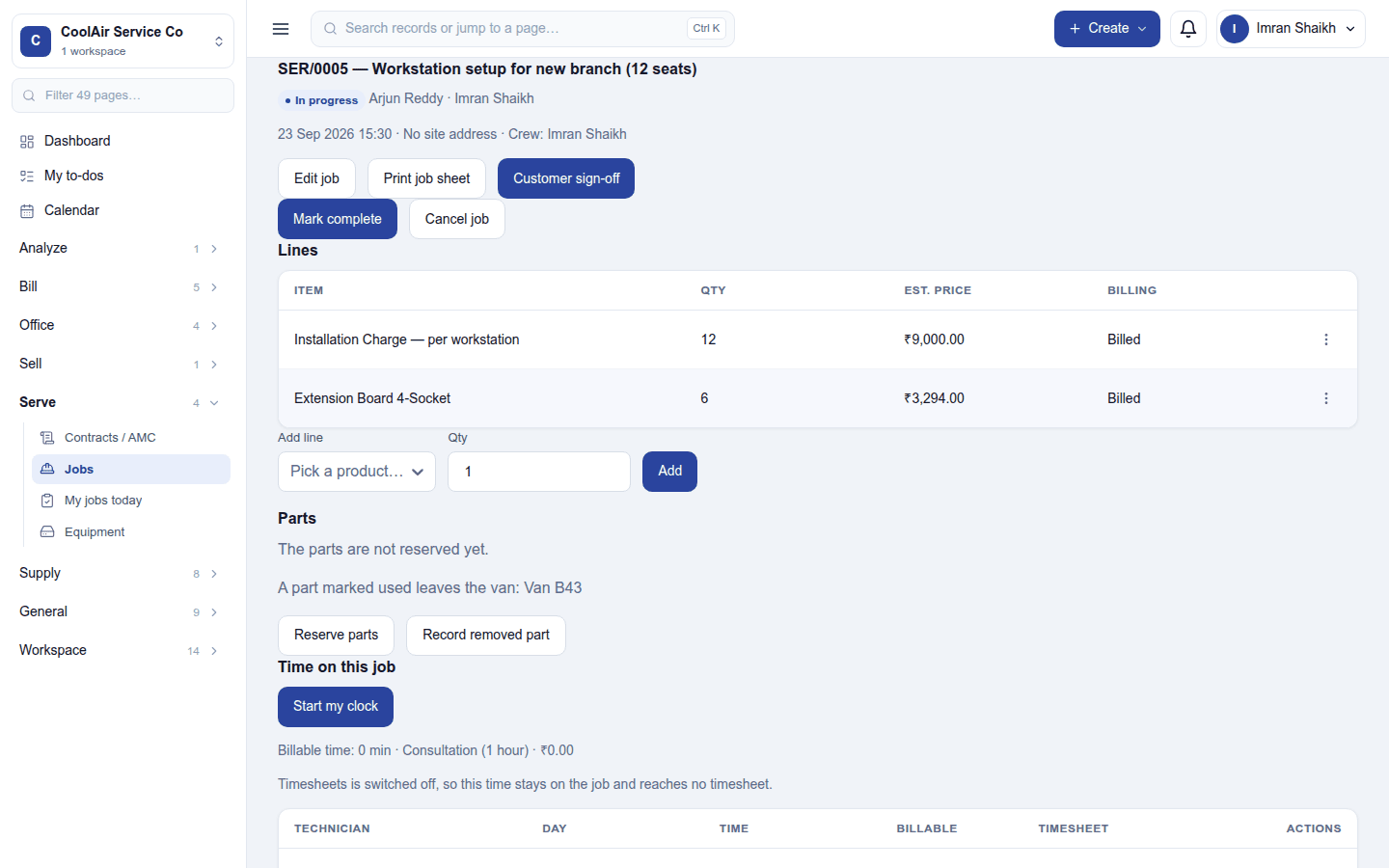
- Edit job, Print job sheet, Customer sign-off (the customer signs on the technician's device), Mark complete and Cancel job.
- Lines: the services and parts on the job with their estimated price and whether they are billed. Add line adds a product. An estimate can be sent for the customer to approve, and extra work quoted on site.
- Parts: Reserve parts from stock, parts used from the technician's van, and Record removed part for the part taken out.
- Time on this job: Start my clock, the travel time and fee, and the billable time, which reaches the technician's timesheet when Timesheets is on.
- Worksheets: the checklist forms filled in on the visit, and the customer's equipment serviced.
A job moves Open → Scheduled → In progress → Completed, and a completed job is invoiced once into an ordinary order and invoice.
My jobs today and equipment
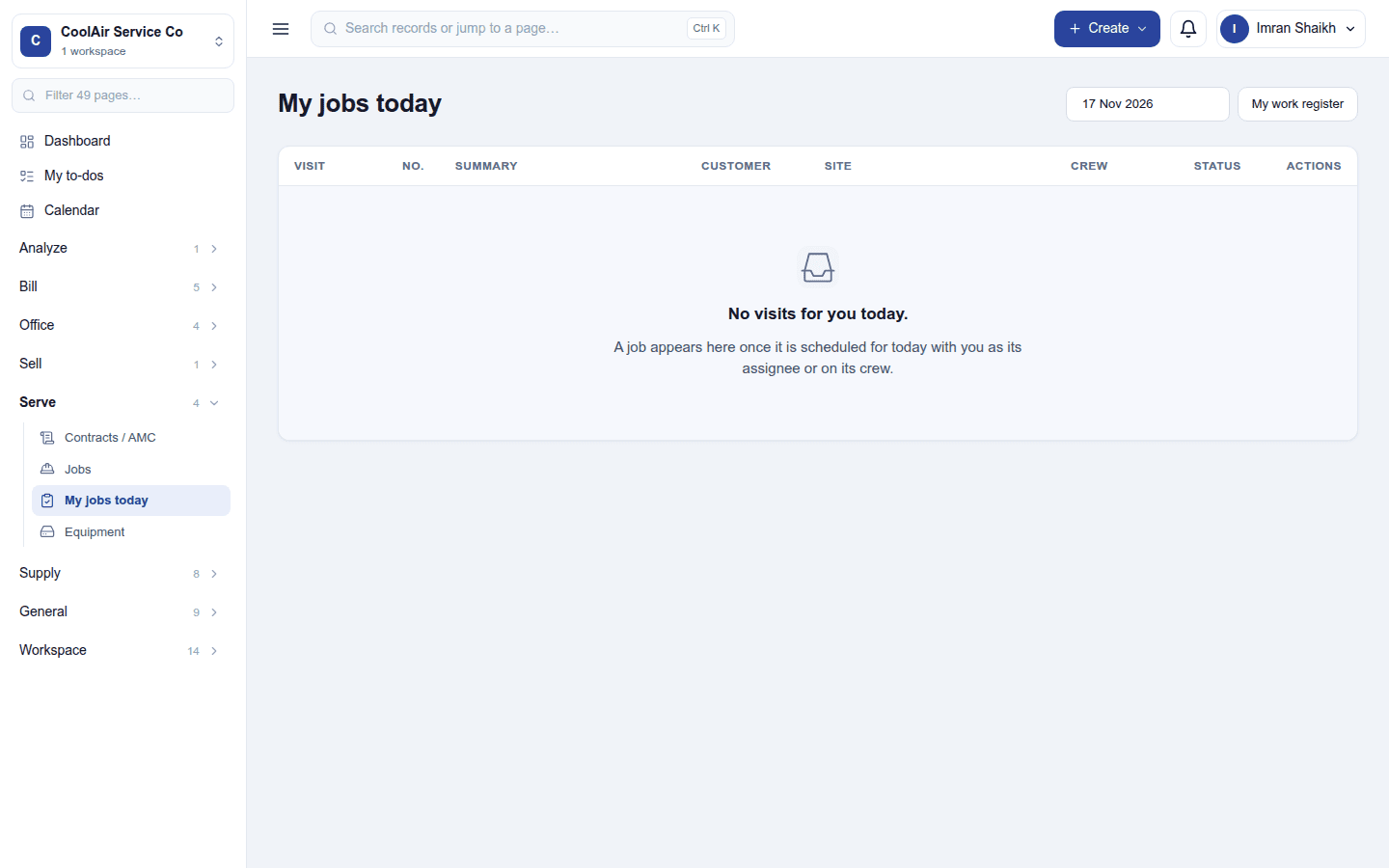
My jobs today lists the jobs you lead or crew whose visit falls on the workspace's today, in the order to be done, with Print job sheet on each and My work register for your own history. It only ever shows your own jobs.
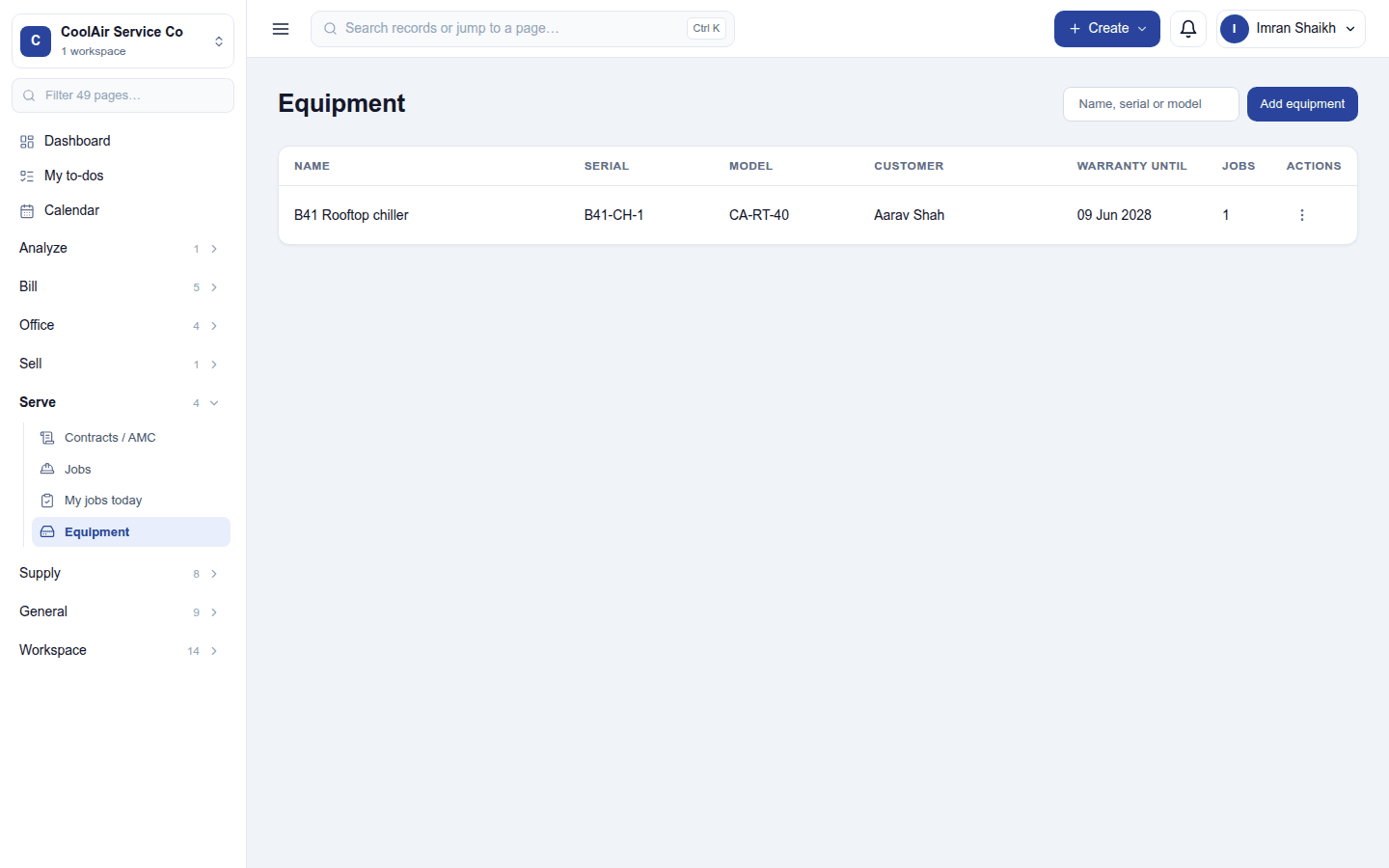
Equipment is the register of customers' equipment (an air conditioner, a lift), with its service history across jobs.
Settings
Settings → Work orders:
- Prices on the visit: Hide prices from technicians (job sheets and the job print without prices).
- Labour: the labour product and the hourly rate the job's time is billed at.
Permissions
| Permission | Allows |
|---|---|
View all jobs (work_orders.view) |
See every job. |
Manage jobs (work_orders.manage) |
Create, assign, schedule, complete and invoice jobs. |
View own jobs (work_orders.view_own) |
See only the jobs one leads or crews (My jobs today). Every workspace has a Technician role with it. |
Ready-made automations
| Name | Kind | What it does | Starts |
|---|---|---|---|
| Tell the technician when a work order is assigned | Rule | Tells the person a work order is assigned to. | On |
| Tell the customer about tomorrow's visit | Rule | The day before a scheduled visit, emails the customer. | On |
Turning it off
The job screens leave the menu. Jobs, their lines and invoices are kept.
In the desktop and mobile apps
Not carried.