







































Email (Brevo)
Sends the workspace's email from its own address through its Brevo account: managed deliverability without running a mail server. Credits are bought in packs and never expire.
| At a glance | |
|---|---|
| Type | Add-on module |
| Group | Engage |
| Price | ₹50 for a pack of 1,000 emails (list price) |
| Provides | Send email from your own address |
| Needs | Nothing (a Brevo account with a verified sender) |
| Offered to | Every industry pack |
| Permission | Manage add-ons (addons.manage) |
What it does
Email (Brevo) is one of four email senders (with your SMTP, Gmail and Microsoft 365). Whichever serves decides where the workspace's mail comes from. It suits campaigns to a large list best: Brevo is built for volume, and its delivery events show in campaign results.
With an email sender on, everything the workspace mails its customers, bulk mail included, goes out from its own address. Without one, bulk and marketing mail is refused with Connect your e-mail sender to send these. See Email (your SMTP) for the full list.
Switching it on
- Go to Workspace → Modules, filter to Add-on modules. Email (Brevo) is under Engage.
- Open its ⋮ menu and choose Enable.
- Fill in the dialog and press Enable.
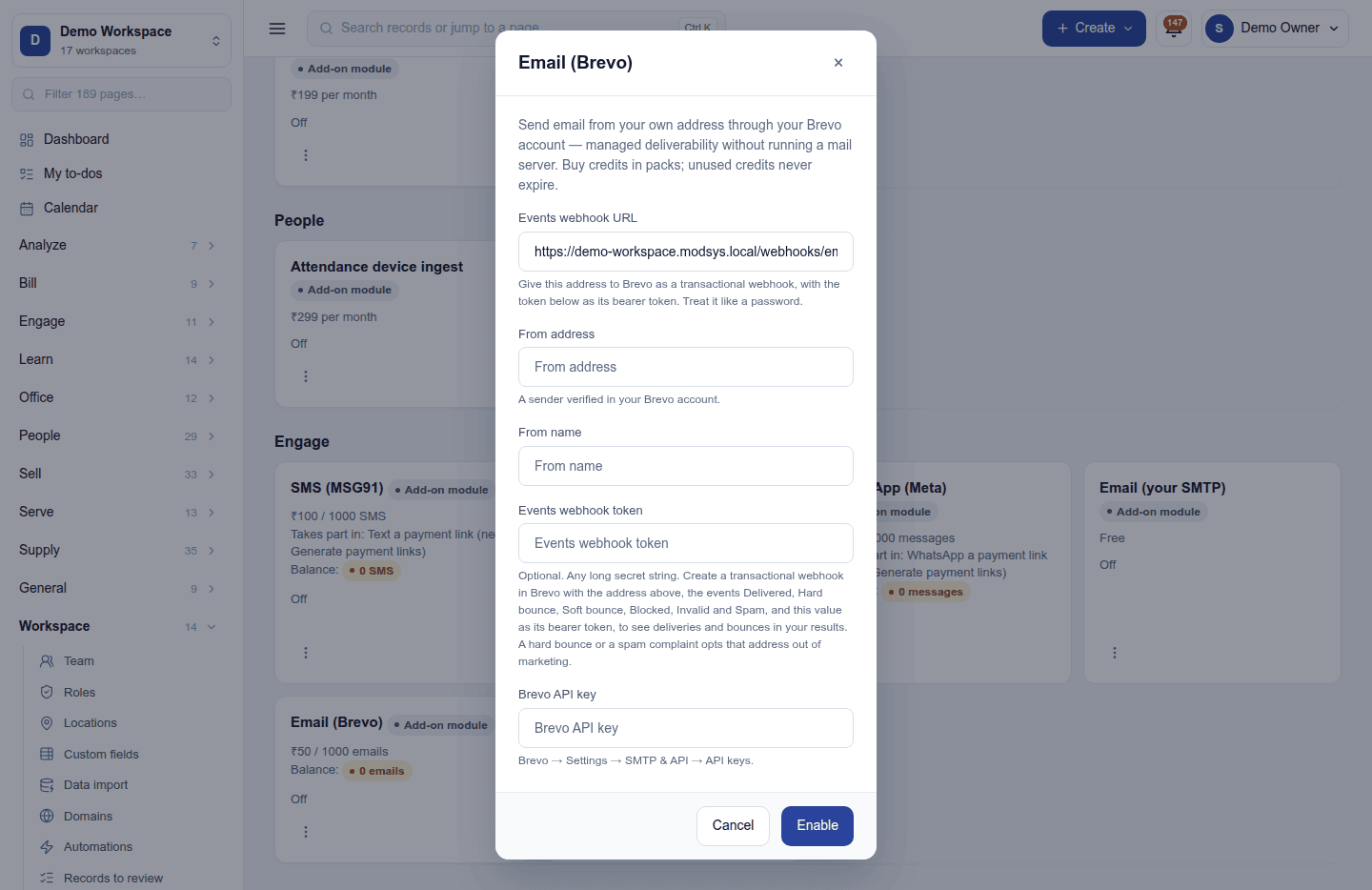
| Field | Required | What to enter |
|---|---|---|
| Events webhook URL | (shown) | Read-only. Give it to Brevo as a transactional webhook, with the token below as its bearer token. Treat it like a password. |
| From address | Yes | A sender verified in your Brevo account. |
| From name | No | The sender name people see. |
| Events webhook token | No | Any long secret string. In Brevo, create a transactional webhook with the address above, the events Delivered, Hard bounce, Soft bounce, Blocked, Invalid and Spam, and this value as its bearer token. |
| Brevo API key | Yes | Brevo → Settings → SMTP & API → API keys. Write-only once saved. |
With the events webhook set up, deliveries and bounces show in campaign and journey results. A hard bounce or a spam complaint opts that address out of marketing, so it is not mailed again.
Send test email on the ⋮ menu (once it is on) mails you through Brevo and shows Brevo's own words if it refuses.
Credits and billing
Each email uses one credit from the Send email from your own address balance. A plan's included allowance (reset at each renewal) is spent first, then packs, which never expire. At zero, sending stops; the owner is warned once when the balance falls under 50. An email Brevo rejects is not charged. The balance shows on the card; Usage and credits lists every movement.
Several email senders
One sender serves at a time (the Default badge). A newly enabled one waits as a stand-by; Make default on its ⋮ menu switches over.
Turning it off
Turn off on the ⋮ menu asks first and keeps the settings and key.
Ready-made automations
None. An email add-on changes who mail is sent from; it adds no moment of its own.
In the desktop and mobile apps
Nothing to set up in the apps.
Related guides
- Email (your SMTP), Email (Gmail / Google Workspace), Email (Microsoft 365 / Outlook)
- Module guides index