







































Approval requests
Lets staff ask for sign-off on things that are not another document: a business trip, a cash advance, a purchase, borrowing equipment. Each request follows its category's form and approvers, and an approved purchase request can become a purchase requisition.
| At a glance | |
|---|---|
| Type | Business module |
| Group | Office |
| Needs | Nothing. Approvers come from the Approvals engine (Core); a requisition needs Purchasing. |
| Included in | Manufacturing, Hotel / guest house, Trusts & non-profits, Repairs & field service, Services & appointments, Schools & colleges |
| Offered to | Every industry pack |
| Permissions | Raise requests (requests.create), View requests (requests.view), Manage requests (requests.manage) |
Switching it on
Workspace → Modules → Approval requests → Enable (needs Manage modules). Requests appears under Office, and Settings gains an Approval requests page for the categories.
Categories
Settings → Approval requests → Request categories: each category (Business trip, Cash advance, Borrow equipment) has:
- a name and a number prefix (
TRVnumbers requestsTRV/0001…); - what a request asks for: amount, date, period, location, contact, product lines, quantity and reference, each not asked, optional or required;
- whether documents are optional or required before submitting, up to ten fields of its own (Travel class, Cost code), and a picture;
- up to ten approvers: the requester's reporting manager (with HR on), a named person, or anyone holding a role that can approve.
Raising a request
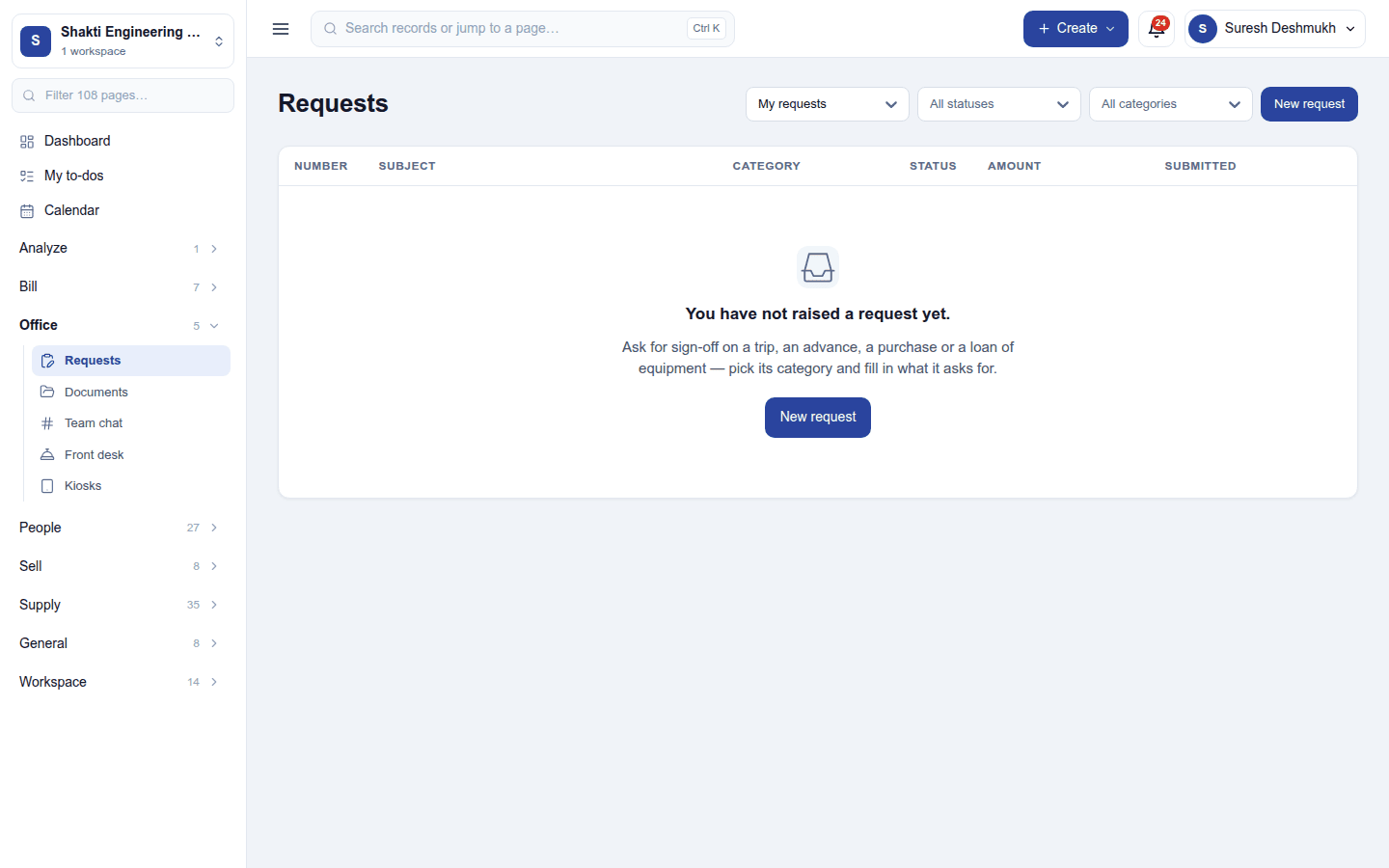
Office → Requests lists your own requests, newest first; a manager can switch to everyone's. Filter by status and category.
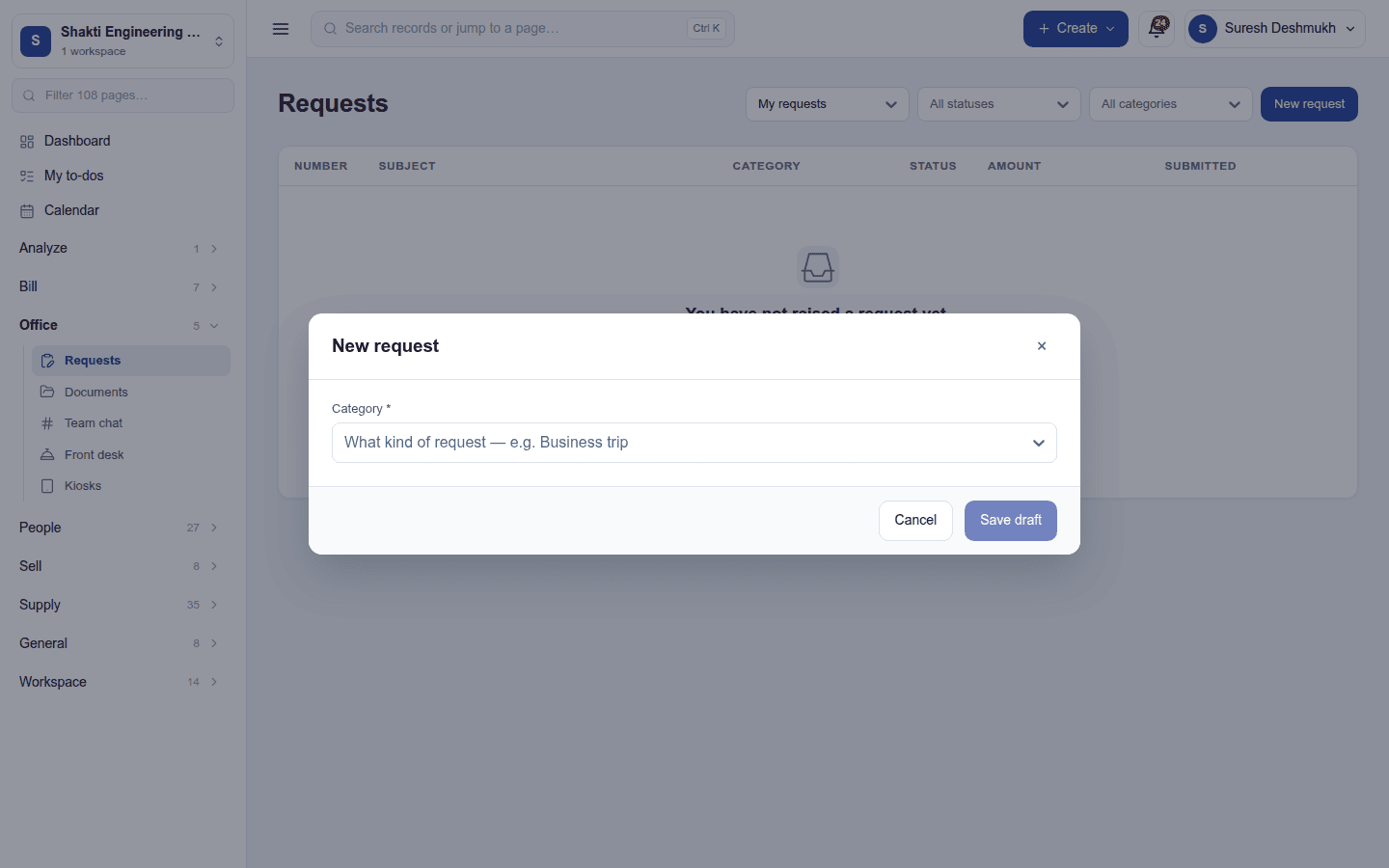
- New request, and pick the category first: the dialog then shows only the details that category asks for.
- Fill in the subject, the details, any product lines (a catalogue product or a description, a quantity and an optional estimate each), and attach documents (up to ten).
- Save draft: the request gets its number and opens on its own page.
- Submit for approval sends it to its approvers; everything the category requires is checked again then.
| Status | Meaning |
|---|---|
| Draft | Saved, not sent. Edit, attach, submit or delete. |
| Waiting for approval | Sent; its approvers have been told. Withdraw (⋮) to take it back. |
| Approved | Signed off and locked; download the PDF. |
| Rejected | Refused by an approver. Final: raise a new request if needed. |
| Withdrawn | Taken back while it waited; edit it and submit again. |
Approvers decide from their Approvals inbox. With Purchasing on, an approved request's product lines can be raised as a purchase requisition. Every request prints as a PDF.
Permissions
| Permission | Allows |
|---|---|
Raise requests (requests.create) |
Raise one's own approval requests. |
View requests (requests.view) |
Read every request and the categories. |
Manage requests (requests.manage) |
Set up categories and read everyone's requests. |
Ready-made automations
None. Approvers are told about each request already.
Turning it off
Requests leaves the menu. Requests and categories are kept.
In the desktop and mobile apps
Not carried.