







































Appointments
The booking diary: services and the resources that deliver them (people, rooms, equipment), working hours, booking by staff or by customers online, group sessions, internal meetings, reminders, no-shows, and video meeting links.
| At a glance | |
|---|---|
| Type | Business module |
| Group | Serve |
| Needs | Nothing. Bookings can be billed as ordinary orders. |
| Included in | Clinics, Diagnostic lab, Gym & coaching, Services & appointments, Salon & spa and others |
| Offered to | Every industry pack |
| Permissions | View appointments (appointments.view), Manage appointments (appointments.manage) |
Switching it on
Workspace → Modules → Appointments → Enable (needs Manage modules). Appointments, Resources, Services and Booking links appear under Serve, and Settings gains its page.
Setting up
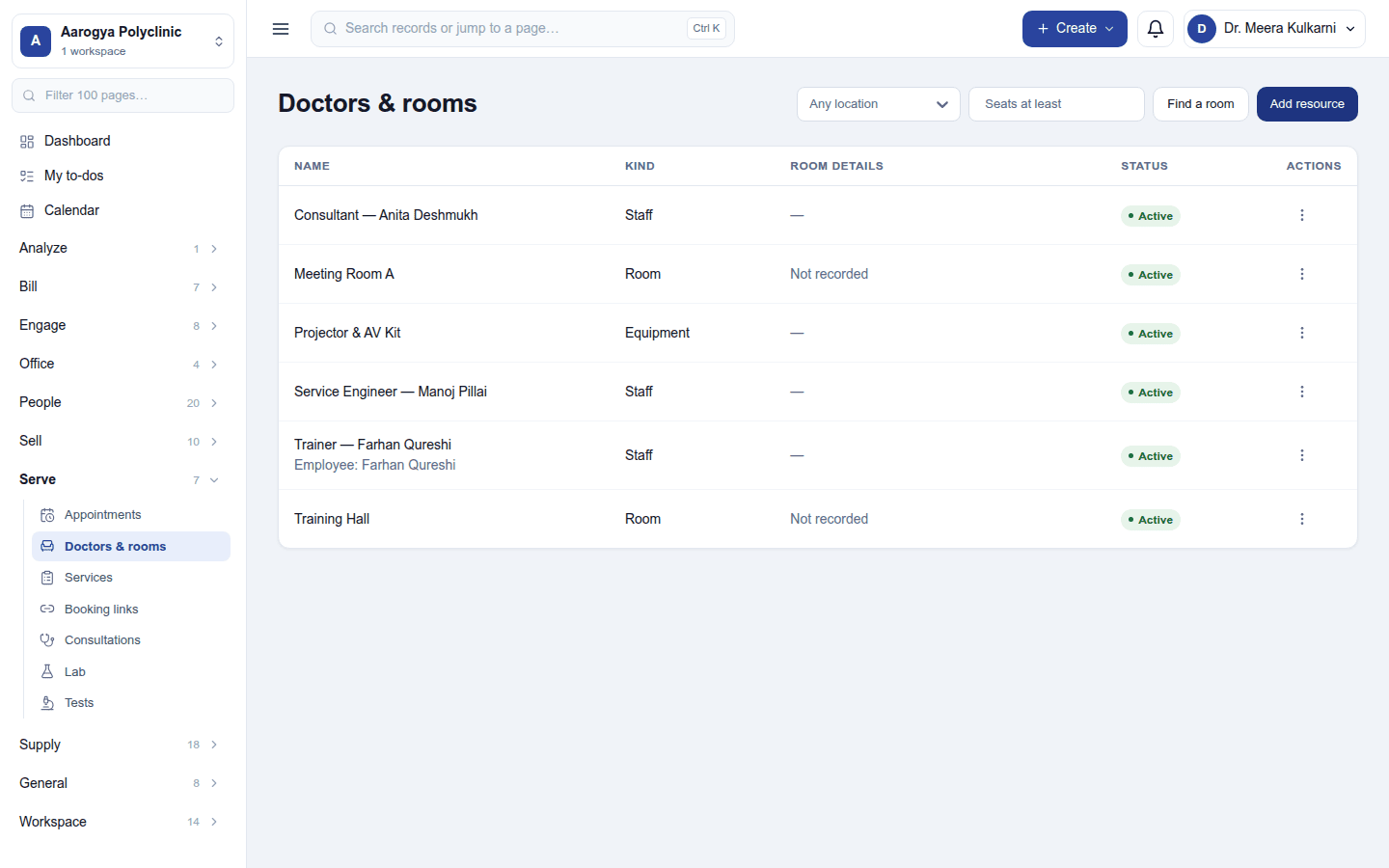
- Resources are who or what a booking takes up: a doctor, a stylist, a consult room, a court. Each has its working hours; staff resources are linked to their employee record, so approved leave blocks the diary.
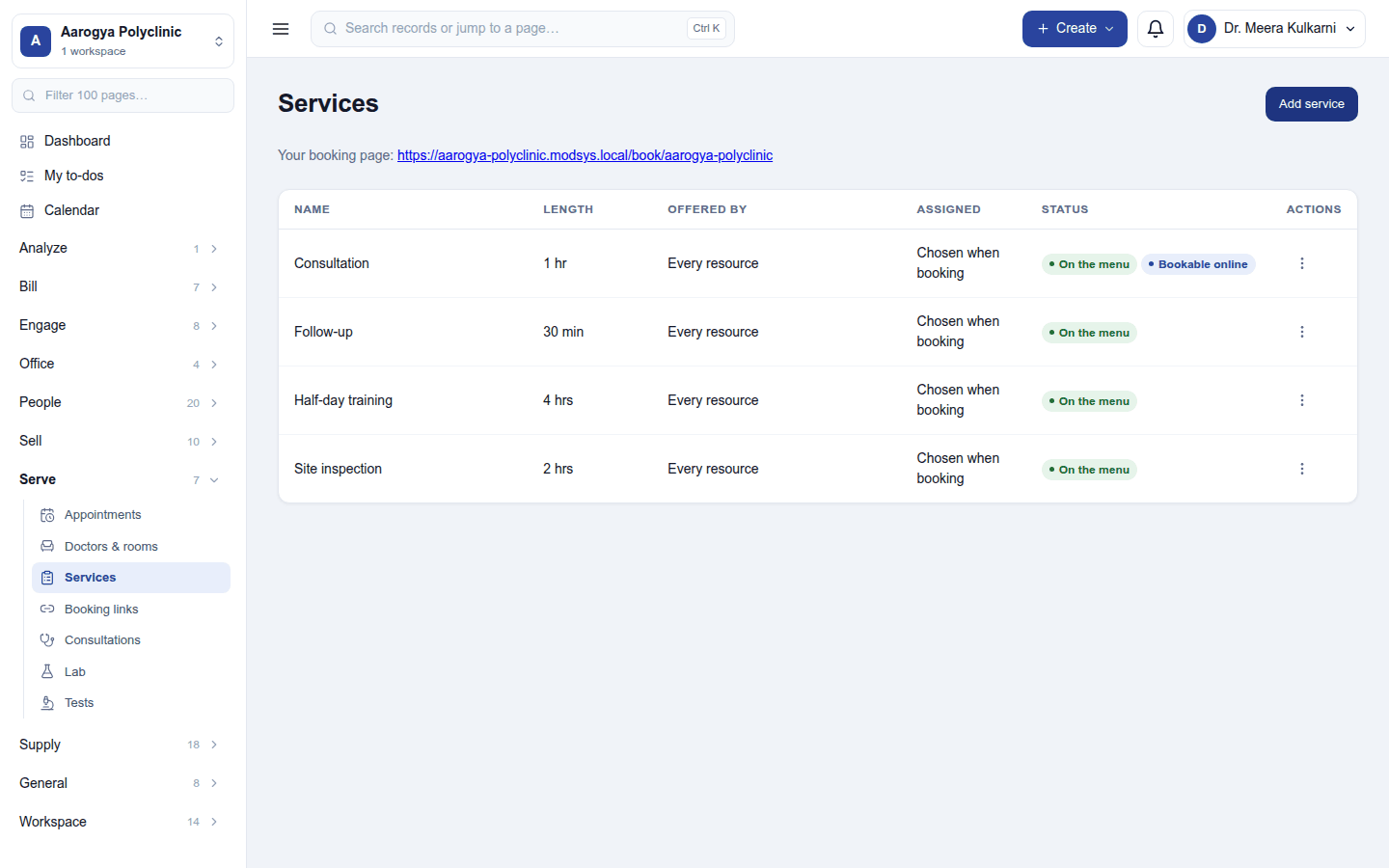
- Services (appointment types) are what is booked: its name, duration, price (the catalogue service it is sold as), which resources can deliver it, buffer and scheduling limits (book at least so long ahead, at most so many days ahead, cancel up to so long before), seats for a group session, questions asked when booking, and whether it can be booked online.
The agenda
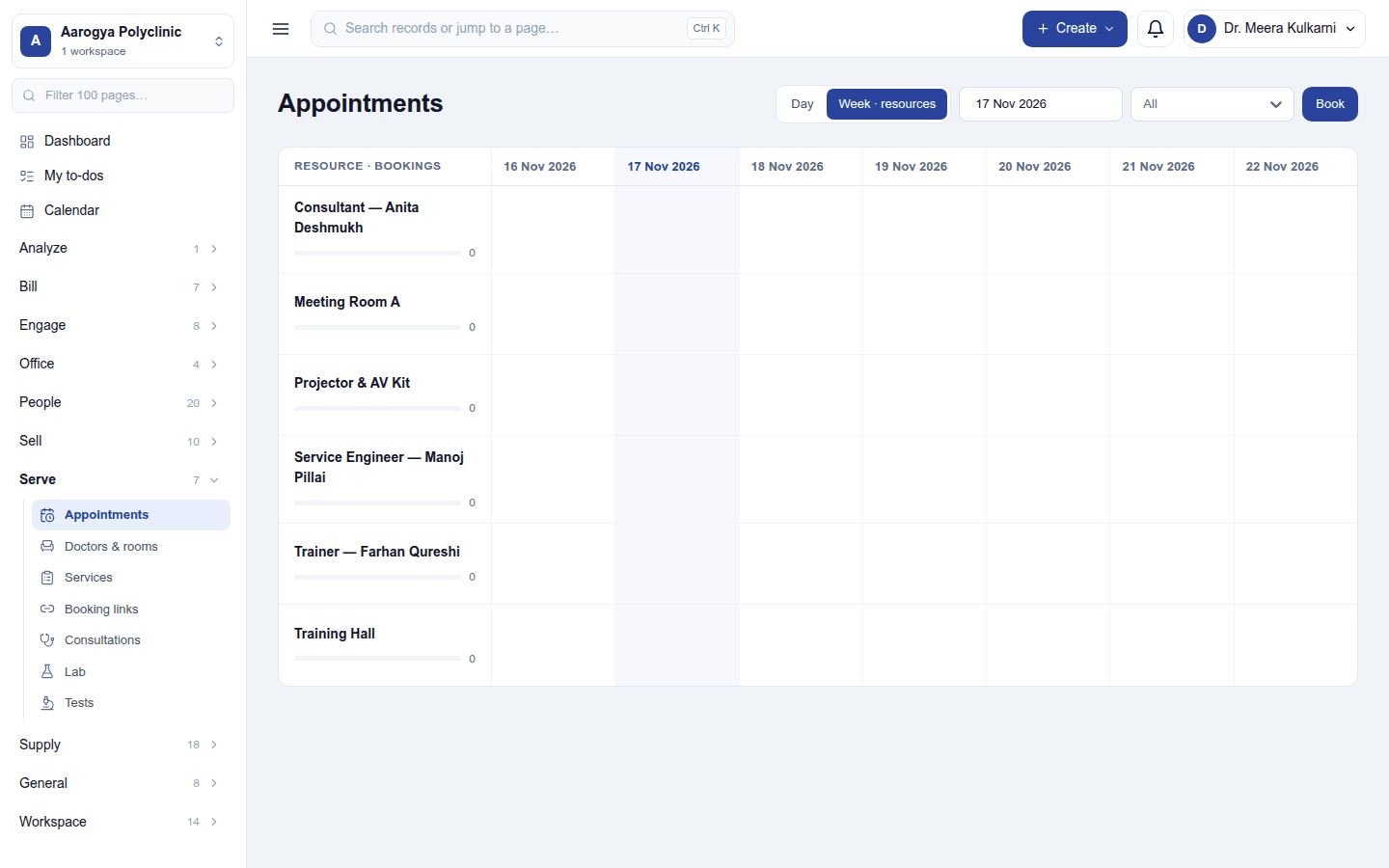
Serve → Appointments shows the day's bookings by resource (Day), or a week across resources (Week · resources). Each booking shows its time, customer, service and status; an online request waiting for staff shows Confirm and Decline.
New booking (or a free slot) opens the booking dialog:
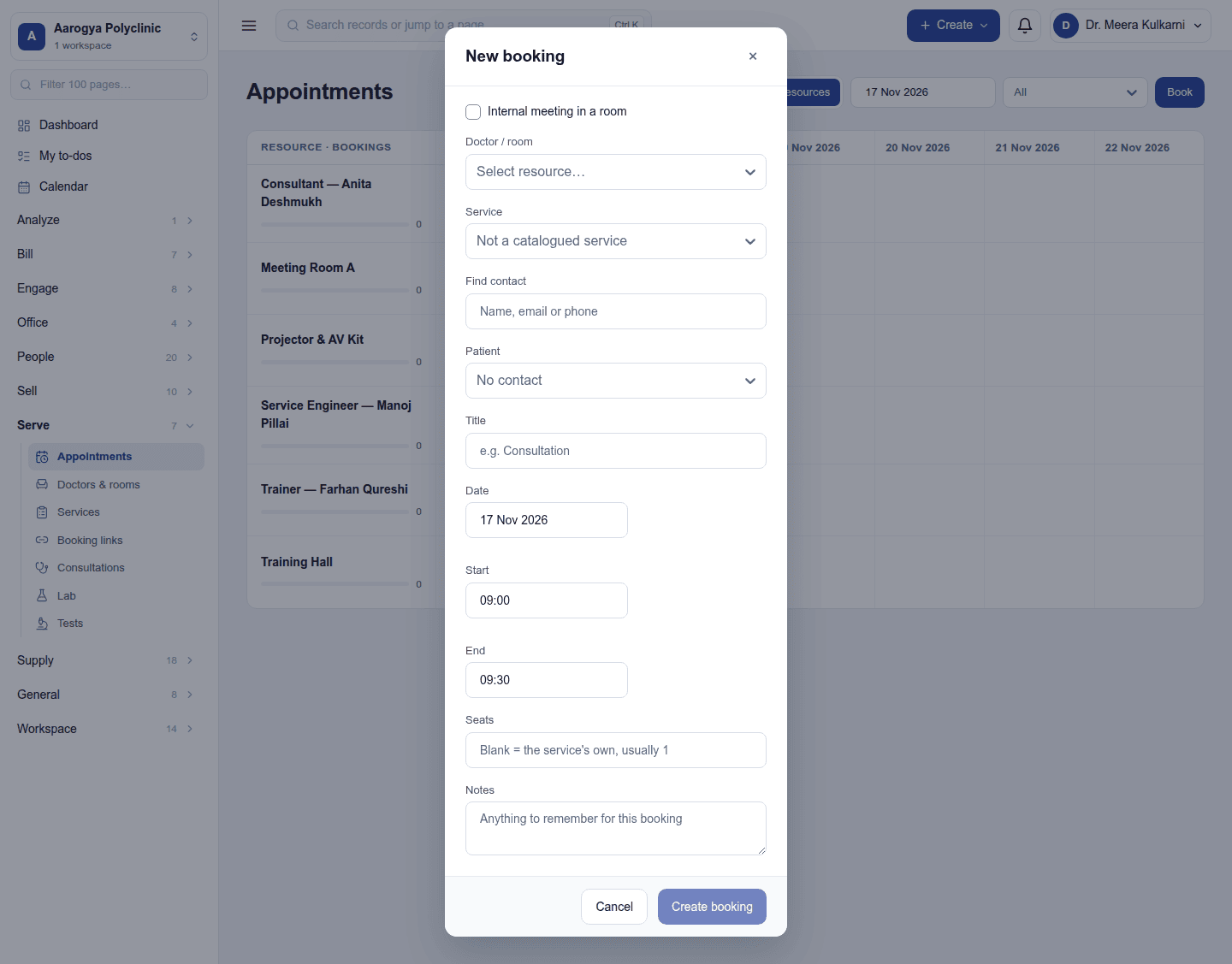
- the service, the resource (or Assigned automatically), the date and time (Find a slot suggests free times within working hours), the customer, and a note;
- with Meeting links (Zoom) on: Create a video meeting link for this booking;
- an Internal meeting books team members (and a room) instead of a customer, and emails each attendee the invitation.
Booking outside working hours, on a staff member's leave or outside the scheduling limits is warned about, and can be done anyway with a tick.
A booking's ⋮ menu: Reschedule, Mark completed, Mark no-show (and Reopen - they did arrive), Cancel booking (a late cancellation is marked Cancelled late), Send WhatsApp… with WhatsApp, and Join meeting for a video booking.
Online booking
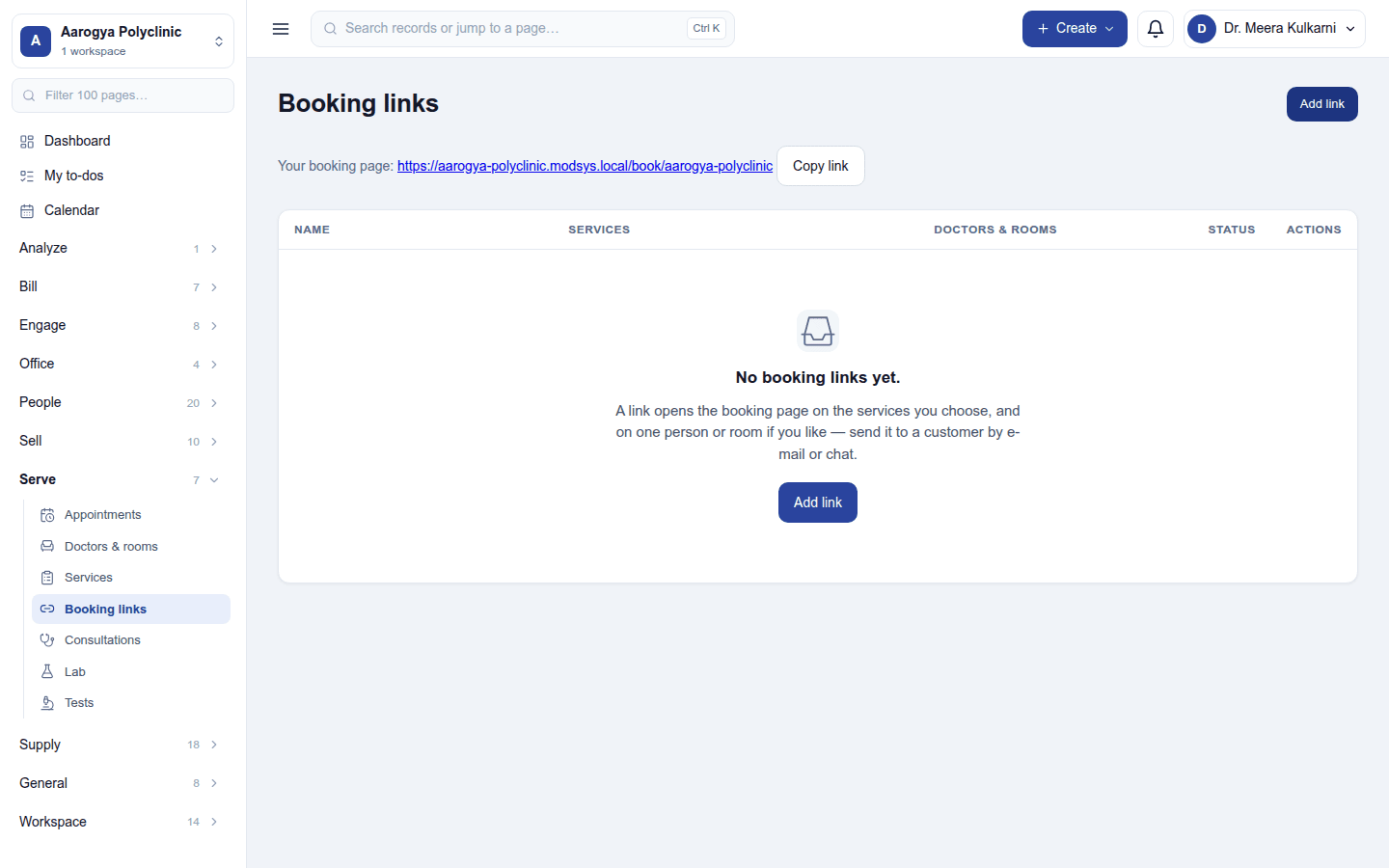
With the plan's Online booking feature, a service marked online is bookable on a public page on the workspace's address: the customer picks a time the diary has free, answers the service's questions, and books. A booking is confirmed straight away, or waits on the agenda for staff to confirm. Booking links gives the page's address and private invite links for one service or one person.
Settings
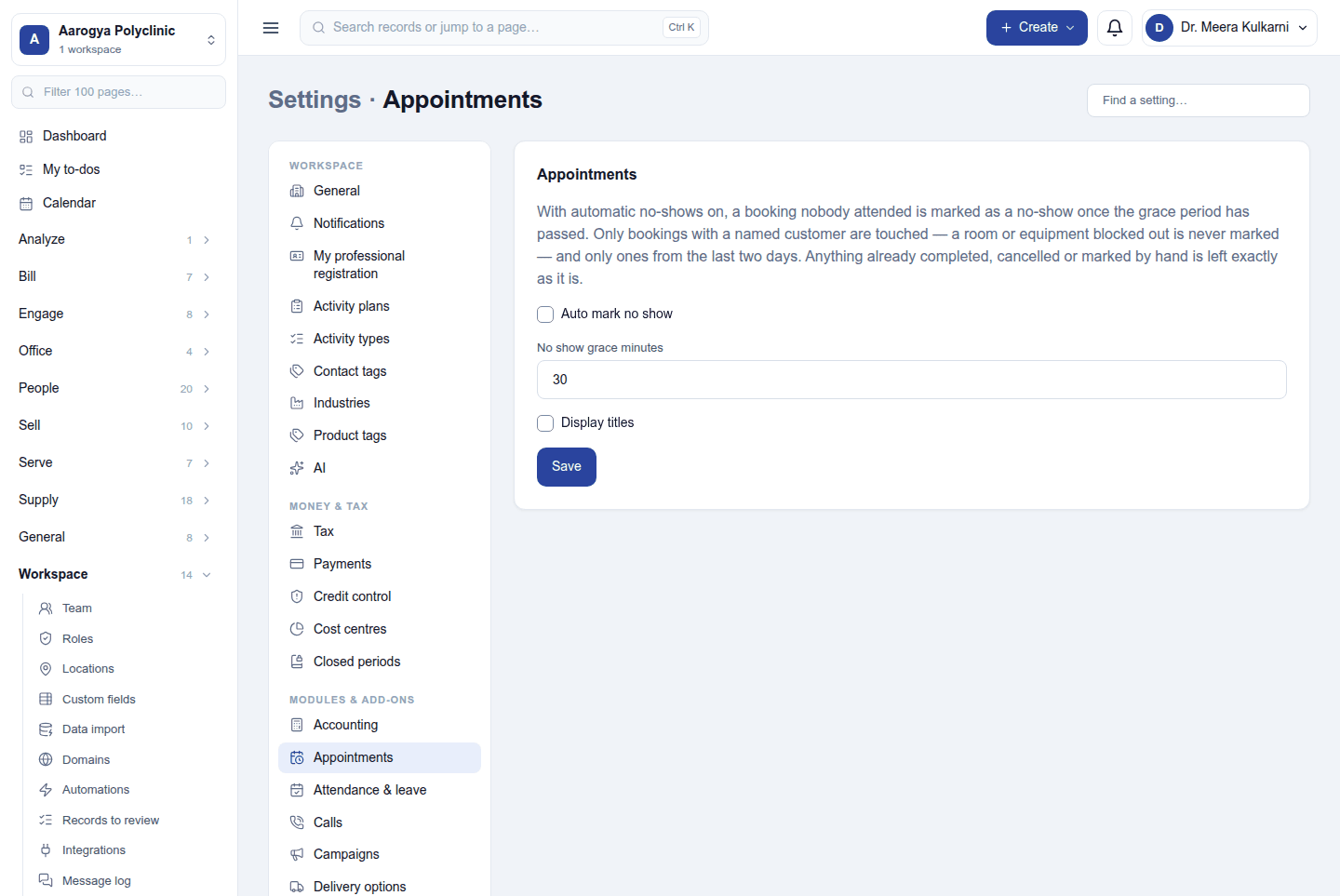
Settings → Appointments:
| Setting | Default | What it does |
|---|---|---|
| Auto mark no-show | Off | A booking nobody marked arrived becomes a no-show by itself. |
| No-show grace minutes | 30 | How long after the start before that happens. |
| Display titles | Off | Shows each booking's title on the agenda instead of the customer and service. |
Permissions
| Permission | Allows |
|---|---|
View appointments (appointments.view) |
See the agenda, resources and services. |
Manage appointments (appointments.manage) |
Book, move, confirm and cancel appointments; keep resources, services and links. |
Ready-made automations
| Name | Kind | What it does | Starts |
|---|---|---|---|
| Call to rebook after a no-show | Rule | When an appointment is marked as a no-show, tells the workspace owner to call and book a new time. | On |
| Email a reminder now | Action (on a booking) | Sends the customer a reminder of this appointment straight away. | On |
Turning it off
The four screens leave the menu and the booking page closes. Bookings, resources and services are kept.
In the desktop and mobile apps
Not carried.