







































WhatsApp (Meta)
Sends WhatsApp template messages from the workspace's own WhatsApp Business number, through Meta's Cloud API, and receives customers' replies. Credits are bought in packs and never expire.
| At a glance | |
|---|---|
| Type | Add-on module |
| Group | Engage |
| Price | ₹150 for a pack of 1,000 messages (list price) |
| Provides | Send WhatsApp messages |
| Needs | Nothing (a WhatsApp Business account with Meta) |
| Offered to | Every industry pack |
| Permission | Manage add-ons (addons.manage) to set it up |
What it does
WhatsApp (Meta) gives the workspace the Send WhatsApp messages capability. A business may only start a WhatsApp conversation with a template Meta has approved, so every send picks one of the workspace's approved templates and fills its values from the record it is about. Replies from customers come back into the workspace.
Switching it on
- Go to Workspace → Modules, filter to Add-on modules. WhatsApp (Meta) is under Engage.
- Open its ⋮ menu and choose Enable.
- Fill in the dialog and press Enable.
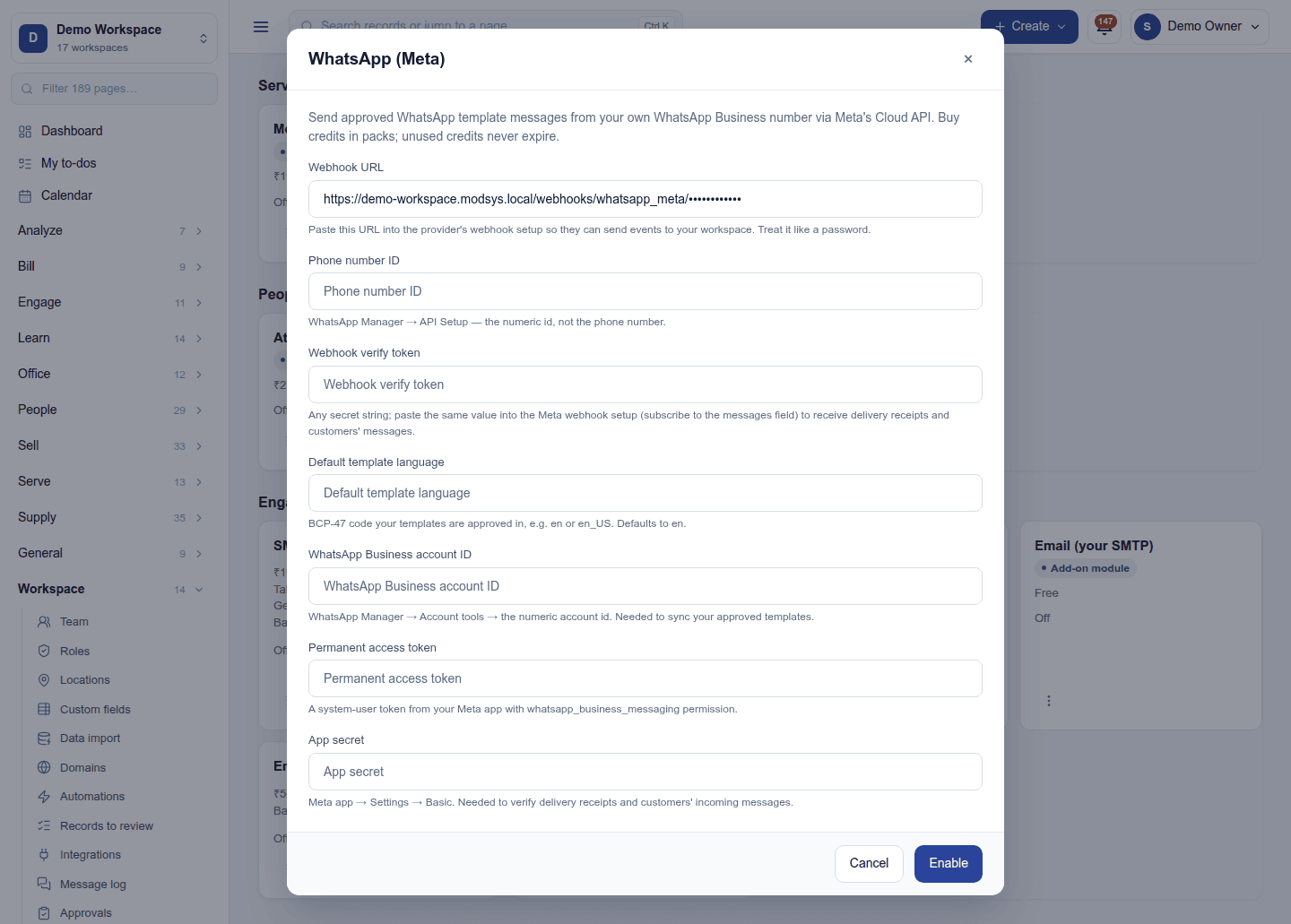
| Field | Required | What to enter |
|---|---|---|
| Webhook URL | (shown) | Read-only. Paste it into your Meta app's WhatsApp → Configuration → Webhook, subscribing to the messages field. It holds the workspace's private webhook token: treat it like a password. |
| Phone number ID | Yes | WhatsApp Manager → API Setup: the numeric id, not the phone number. |
| Webhook verify token | No | Any secret string. Paste the same value into the Meta webhook setup to receive delivery receipts and customers' messages. |
| Default template language | No | The BCP-47 code your templates are approved in, such as en or en_US. Blank means en. |
| WhatsApp Business account ID | No | WhatsApp Manager → Account tools: the numeric account id. Needed to sync your approved templates. |
| Permanent access token | Yes | A system-user token from your Meta app with the whatsapp_business_messaging permission. |
| App secret | No | Meta app → Settings → Basic. Needed to check that delivery receipts and customers' incoming messages really come from Meta. |
The access token and app secret are write-only once saved.
Templates
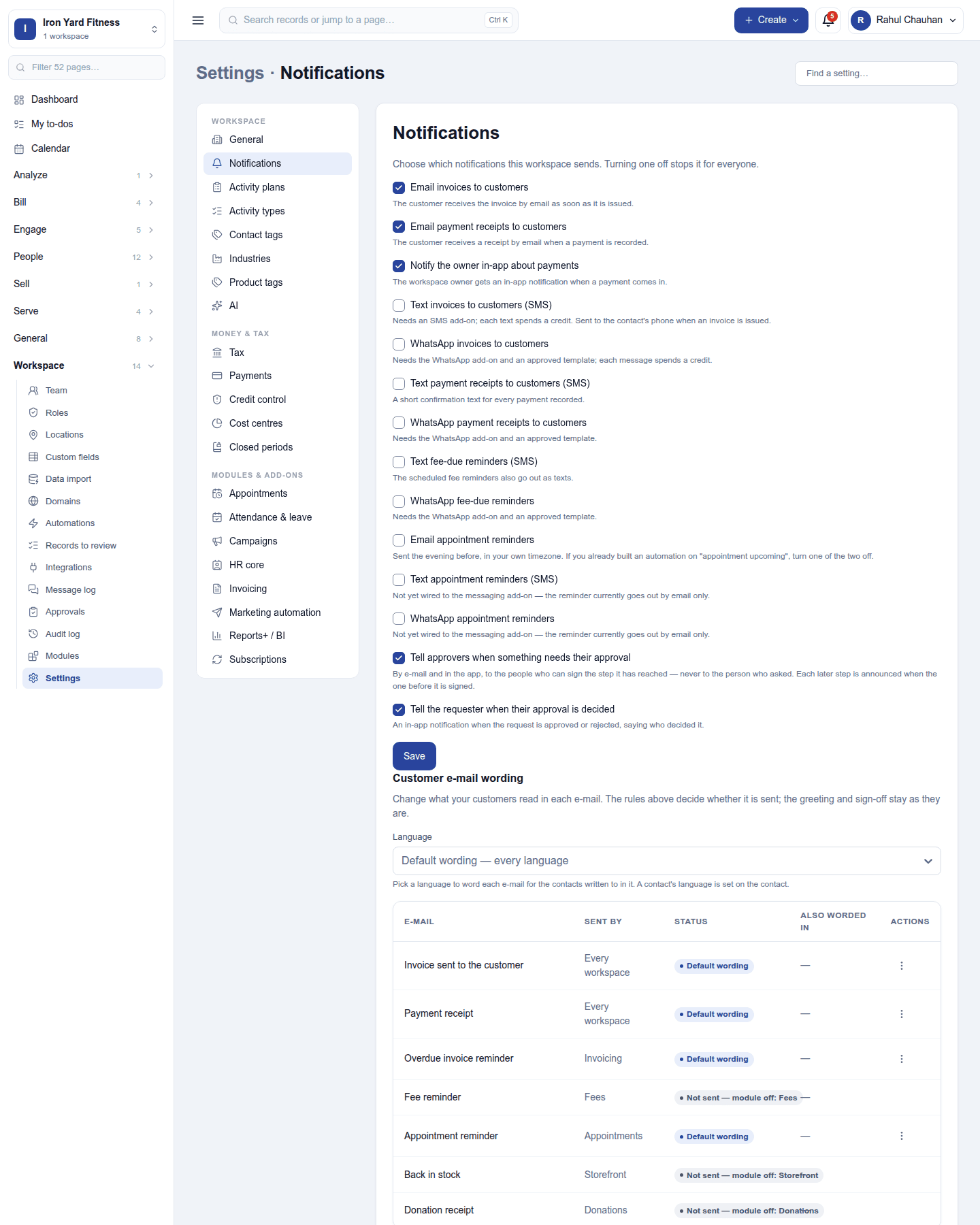
Settings → Notifications → WhatsApp templates copies the approved templates from Meta into the workspace (it needs the WhatsApp Business account ID). Every screen that sends a WhatsApp message then offers a template picker, asks for each of its values in turn and shows a live preview. Templates with a picture, video or document header, or with link and coupon buttons, are filled the same way.
Where it is used
- From a record: a WhatsApp button on a contact, lead, quotation, order, invoice, ticket, work order, purchase order, project task, appointment and event registration. The Contacts and Orders lists can send one template to up to 100 selected rows at once.
- Campaigns: the WhatsApp channel.
- Automations: Send a WhatsApp template, and WhatsApp a payment link with Payment links.
- Invoices: sending the bill by WhatsApp.
- POS: the your order is ready message to a pickup customer.
- Events, LMS, surveys, eSign, share cards, staff-meal alerts and marketing journeys, wherever they offer a WhatsApp option.
Who is never sent to: a marketing template (Meta's category) never goes to a contact on Do not disturb or one who opted out of marketing, however the number was typed. Utility templates (a reminder, a receipt) still go. In an Indian workspace, marketing templates sent between 21:00 and 09:00 wait until 09:00 and then go once. A plain, non-template message needs the customer to have written in the last 24 hours.
Every send is listed in Workspace → Message log, where delivery receipts move it on from sent to delivered and read.
Incoming messages
When a customer writes to the business number, the message reaches the workspace:
- With Live chat on, it opens or continues a WhatsApp conversation in the Live chat inbox, and the team replies there.
- Without it, it is filed on the customer's contact timeline, and the people chosen under Settings → Notifications → Incoming WhatsApp messages are told on the bell.
Credits and billing
Messages are paid per use from the Send WhatsApp messages balance: a plan's included allowance (reset at each renewal) is spent first, then packs, which never expire. At zero, sending stops, and the owner is warned once when the balance falls under 50. A message Meta rejects is not charged. The balance shows on the card and Usage and credits lists every movement.
Turning it off
Turn off on the ⋮ menu asks first. WhatsApp buttons disappear from records, and automations that send WhatsApp refuse rather than do nothing. Settings, keys and synced templates are kept.
Ready-made automations
None. Every WhatsApp send needs a template the business has approved with Meta, so none can be preset.
In the desktop and mobile apps
Nothing to set up in the apps. Messages the server sends (a pickup message from the till) go through this add-on like any other send.