







































Admissions
Takes applications from prospective students and moves each one through the school's admission stages, from a first enquiry to an enrolled student.
| At a glance | |
|---|---|
| Type | Business module |
| Group | Learn |
| Needs | Nothing. Enrolling creates a student only while Student information is on. |
| Included in | Schools & colleges, Classes & coaching |
| Offered to | Schools & colleges, Classes & coaching |
| Permissions | View admissions (admissions.view), Manage admissions (admissions.manage) |
What it does
Every application is numbered from the workspace's series (for example ADM/0010) and sits in one stage:
New → Screening → Entrance test → Interview → Offered → Enrolled
An application moves forward one stage at a time and can be Rejected, with a reason, at any stage before it is enrolled. Enrolled and Rejected are final. Only an Offered applicant can be enrolled.
Switching it on
Workspace → Modules → Admissions → Enable (needs Manage modules). Admissions appears under Learn.
The admissions board
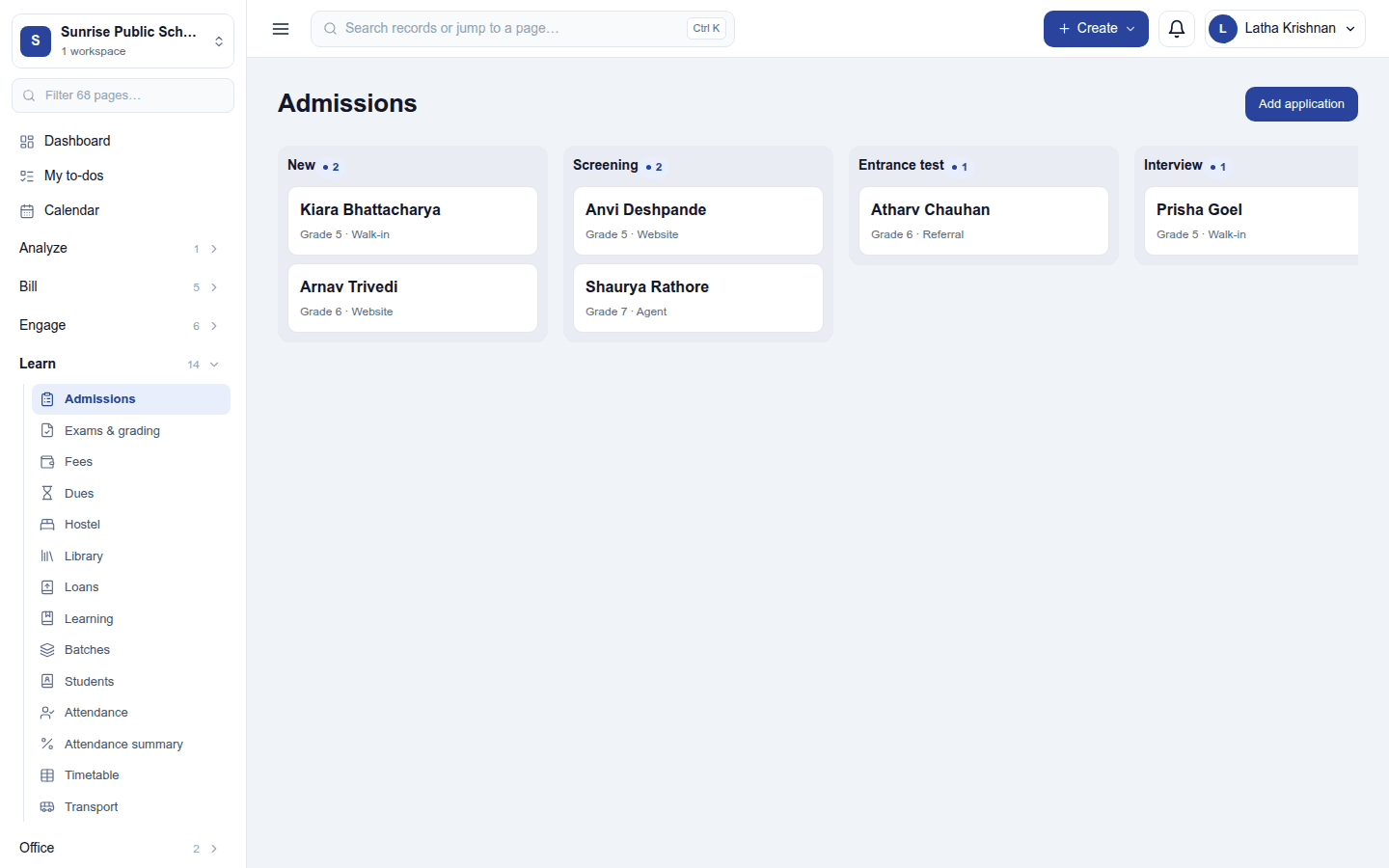
Learn → Admissions shows a column per stage, each with its count, and a card per applicant with the class applied for and where they came from. Click a card to open the application below the board:
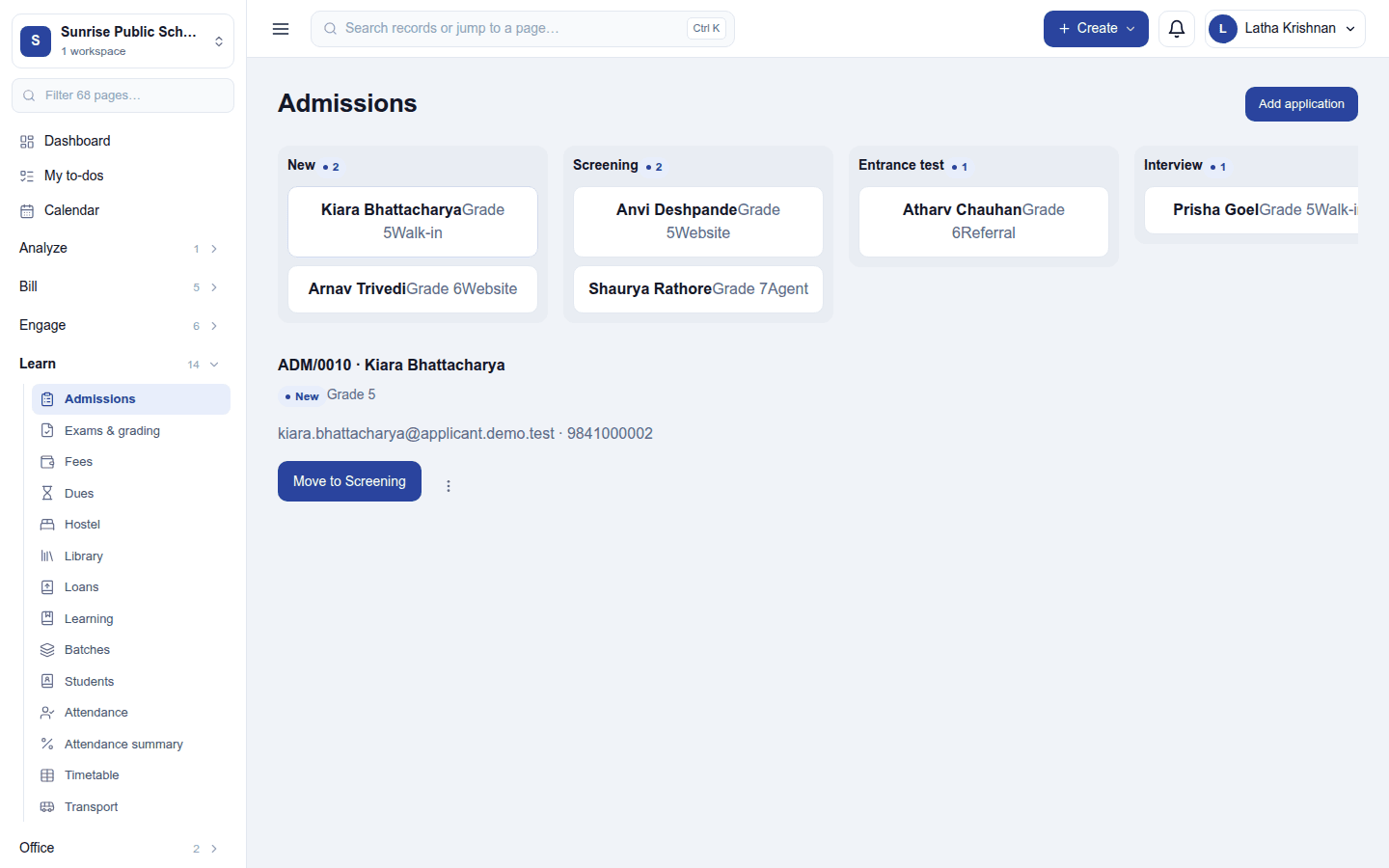
- its number and applicant, the stage, the class (and section) applied for, and the applicant's email and phone;
- Move to the next stage (for example Move to Screening);
- Enrol once the applicant is Offered. It asks first: This admits the applicant and hands them to the student system. This cannot be undone.
- the ⋮ menu: Reject (asks for a reason, such as Seats full for this class) and Delete (removes the application; asks first).
Adding an application
Add application opens New application:
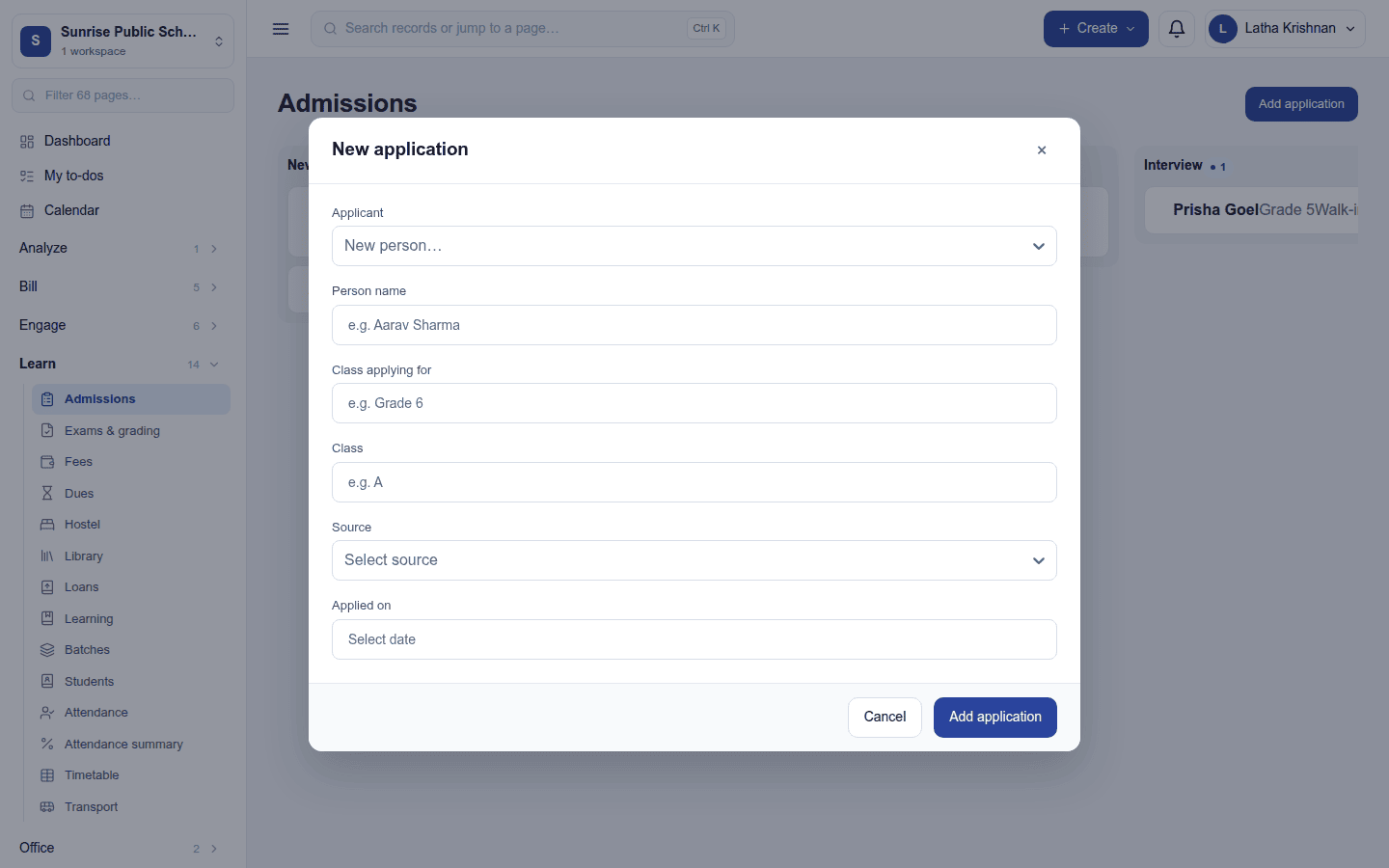
| Field | What to enter |
|---|---|
| Applicant | An existing contact, or New person… with the person's name |
| Class applying for | Required, for example Grade 6 |
| Class | The section, for example A (optional) |
| Source | Walk-in, Website, Referral, Agent or Other |
| Applied on | The application date |
Enrolling
Enrolling marks the application Enrolled and announces it. With Student information on, the applicant becomes a student straight away, joined today, unless they already are one. They are placed in the class they applied for when this academic year has it: the section that matches the class and section on the application (or the class's only section, if it has one). If the class is not set up this year, or its section is full, the student is enrolled without a class; assign one on Students (View → Assign class). With Student information off, only the application is marked enrolled.
Permissions
| Permission | Allows |
|---|---|
View admissions (admissions.view) |
See the board and each application. |
Manage admissions (admissions.manage) |
Add, move, enrol, reject and delete applications. |
Ready-made automations
| Name | Kind | What it does | Starts |
|---|---|---|---|
| Thank applicants for applying | Rule | Emails the applicant when an application is received. | On |
| Tell me about new applications | Rule | Tells the workspace owner when an application comes in. | On |
Turning it off
Admissions leaves the menu and its server routes refuse. Applications are kept and return when it is switched on again.
In the desktop and mobile apps
Not carried.