







































Surveys
Builds questionnaires, feedback forms and quizzes: sections and pages, many question types, conditional questions, scoring and certificates, invitations by email, SMS or WhatsApp, public links and QR codes, live sessions, and results per question.
| At a glance | |
|---|---|
| Type | Business module |
| Group | Engage |
| Needs | Nothing |
| Included in | Services & appointments, Classes & coaching, Corporate training, Association & club |
| Offered to | Every industry pack |
| Permissions | View surveys (surveys.view), Manage surveys (surveys.manage) |
Switching it on
Workspace → Modules → Surveys → Enable (needs Manage modules). Surveys appears under Engage.
Surveys
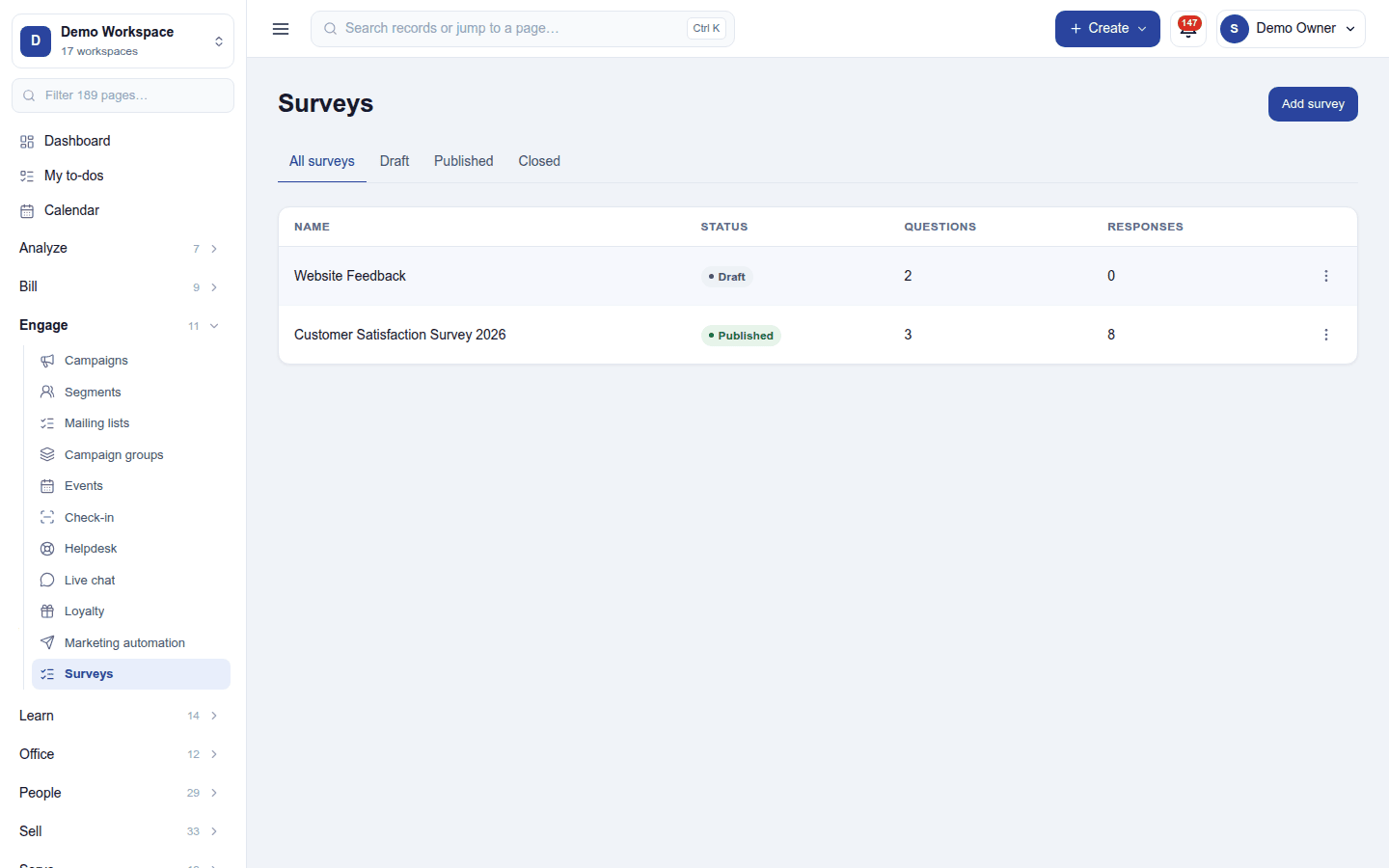
Engage → Surveys lists each survey with its status (Draft, Published, Closed), questions and responses. Add survey starts one: its title, whether anonymous answers are allowed, one page or several, and who may answer (anyone with the link, or invited people only).
Click a survey to open it:
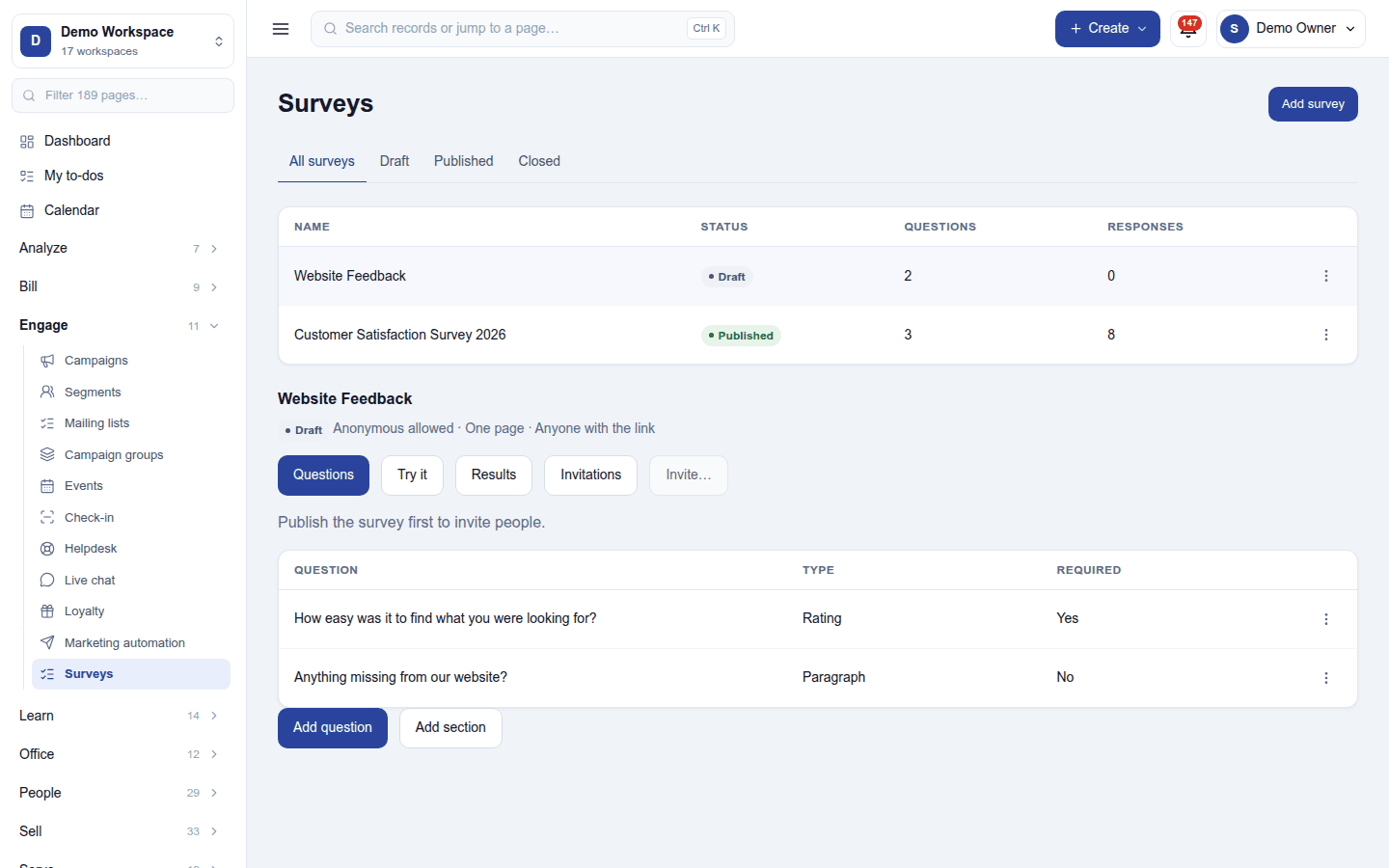
- Questions: Add question (rating, paragraph, short text, single or multiple choice, number, date and more, with answer rules) and Add section for pages; a question can show only when an earlier answer matches.
- Try it: answer it yourself as a test, without counting.
- Results: counts per choice, averages for ratings, and every response.
- Invitations: who was invited and who answered.
- Invite… (once published): send the survey by email, SMS or WhatsApp.
A survey can be scored like a quiz, with a pass mark and a certificate; can have a time limit, a number of attempts and random questions; can run as a live session on a shared screen; and can print as a blank form. A public link with its QR code puts a feedback form in front of customers (on a receipt, a table tent or a poster); it needs anonymous answers allowed.
Permissions
| Permission | Allows |
|---|---|
View surveys (surveys.view) |
See surveys and their responses. |
Manage surveys (surveys.manage) |
Build, publish, invite and close surveys. |
Ready-made automations
| Name | Kind | What it does | Starts |
|---|---|---|---|
| Tell me about each survey response | Rule | Tells the workspace owner when a survey is answered. | Off, because a busy survey can bring many |
Turning it off
Surveys leaves the menu and public links stop opening. Surveys and responses are kept.
In the desktop and mobile apps
Not carried. The till can print a feedback form's QR code on receipts.
Related guides
- Appraisals (360° feedback), POS
- Module guides index