







































Attendance & leave
Records who came in and when (by hand, by staff checking themselves in, at a kiosk or from a punch machine), overtime, leave types and balances, leave requests and their approval, public holidays, the team calendar and the muster roll.
| At a glance | |
|---|---|
| Type | Business module |
| Group | People |
| Needs | HR core |
| Needed by | Payroll |
| Included in | Clinics, Schools & colleges, Hotel / guest house, Manufacturing, Restaurant, Trusts & non-profits and others |
| Offered to | Every industry pack |
| Permissions | Seven, from View attendance to Approve overtime (see Permissions) |
Switching it on
Workspace → Modules → Attendance & leave → Enable (needs Manage modules). HR core must be on first. The attendance and leave screens appear under People, and Settings gains its page.
Attendance
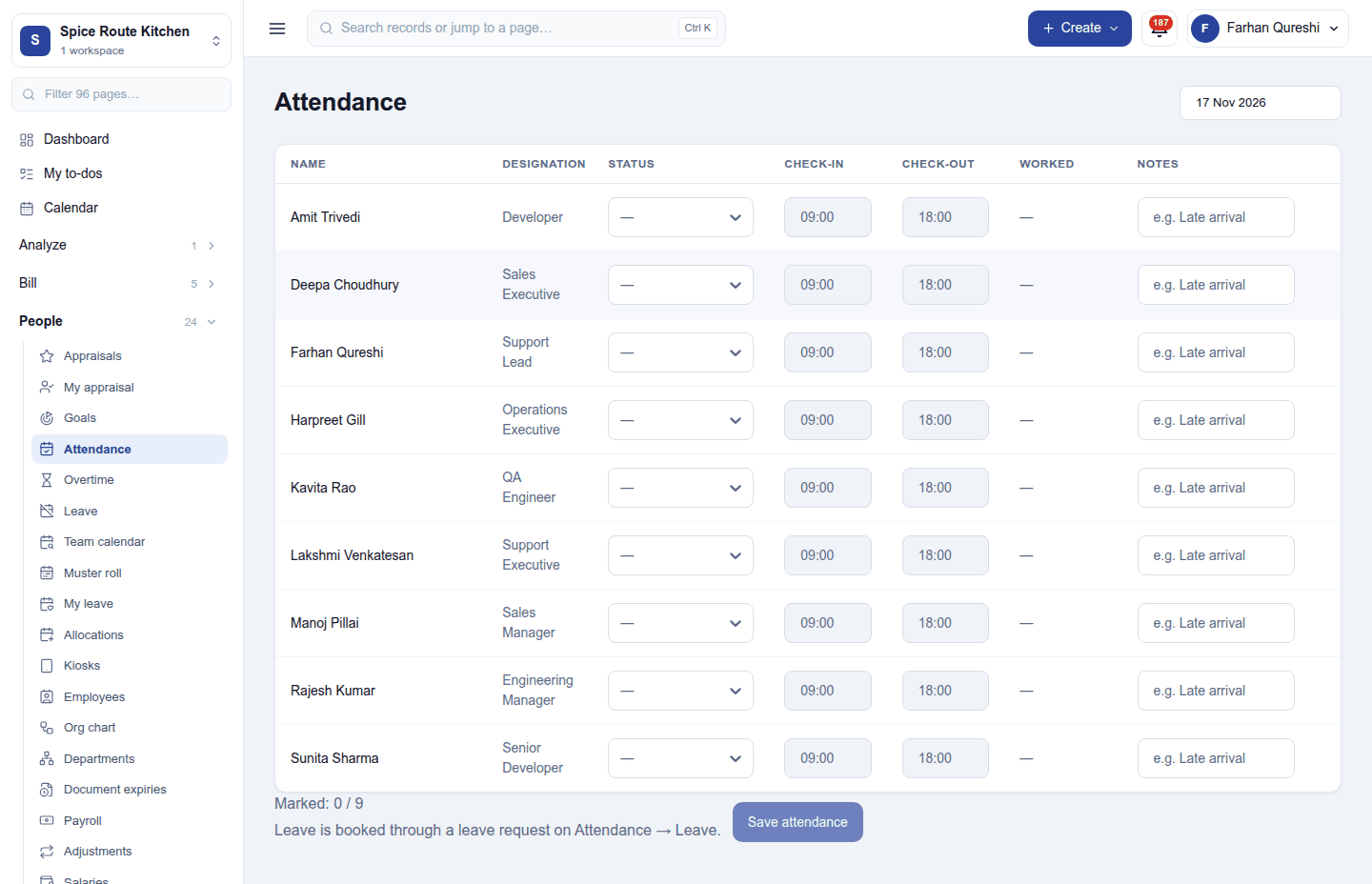
People → Attendance is the day's register: pick the date, and for each person set the status (Present, Absent, Half day), the check-in and check-out times and a note, then Save attendance. Leave is booked through a leave request, not here. A day is recorded in one of four ways:
- By hand, by someone with Manage attendance.
- Self check-in: staff check themselves in and out from the button in the top bar (when switched on), optionally recording the IP address and location.
- At a kiosk: a paired device at the door where people identify by PIN or badge (and, if they agree, a photo is taken). Kiosks are paired on Kiosks; each person sets their PIN from the user menu.
- From a punch machine, with the Attendance device ingest add-on module.
People still checked in late at night can be checked out automatically, and a working day with nothing recorded can be marked absent.
Overtime: worked time beyond the schedule, counted per day, waiting for approval where approval is required.
Leave
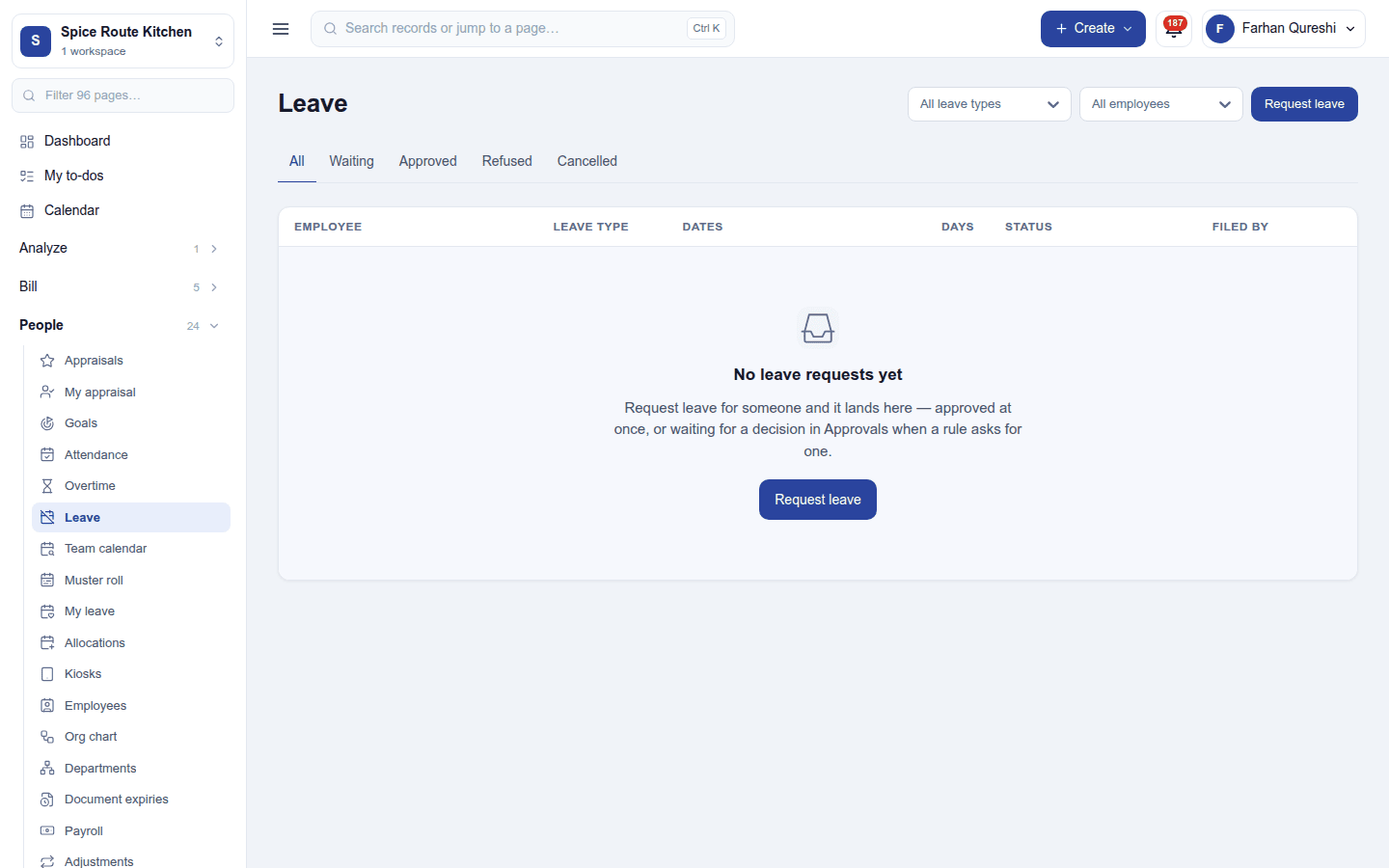
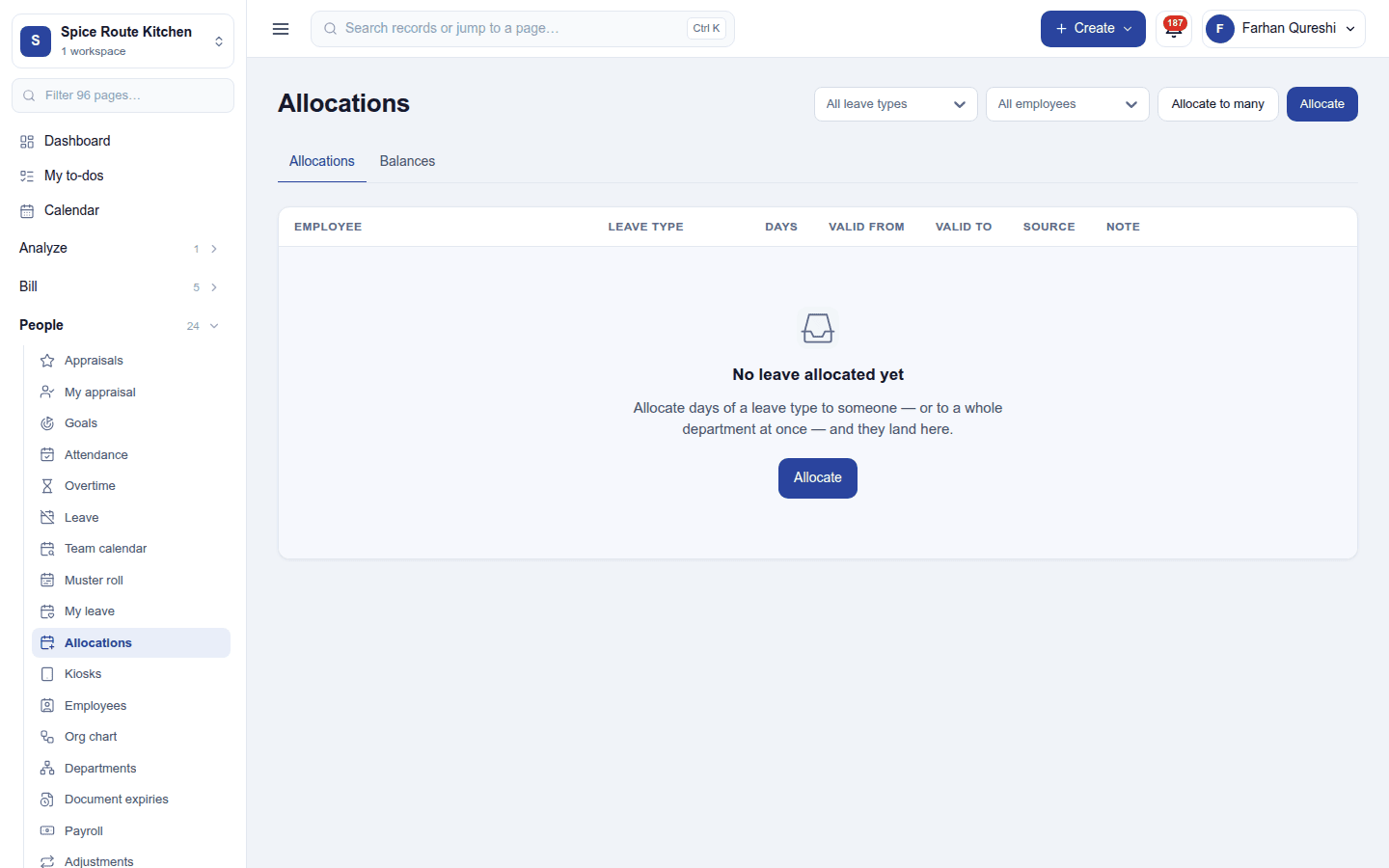
- Leave types (annual, sick, casual …) with whether they are paid, and allocations: each person's entitlement per type and year, given by hand or by accrual plans that add days as time passes.
- My leave: a person's own balances and requests; Request leave asks for days off.
- Leave: requests waiting for a decision, with Approve and Refuse. Each person's leave approver is named on their employee record.
- Public holidays and blocked days (when no leave may be taken) are kept in Settings.
Team calendar and muster roll
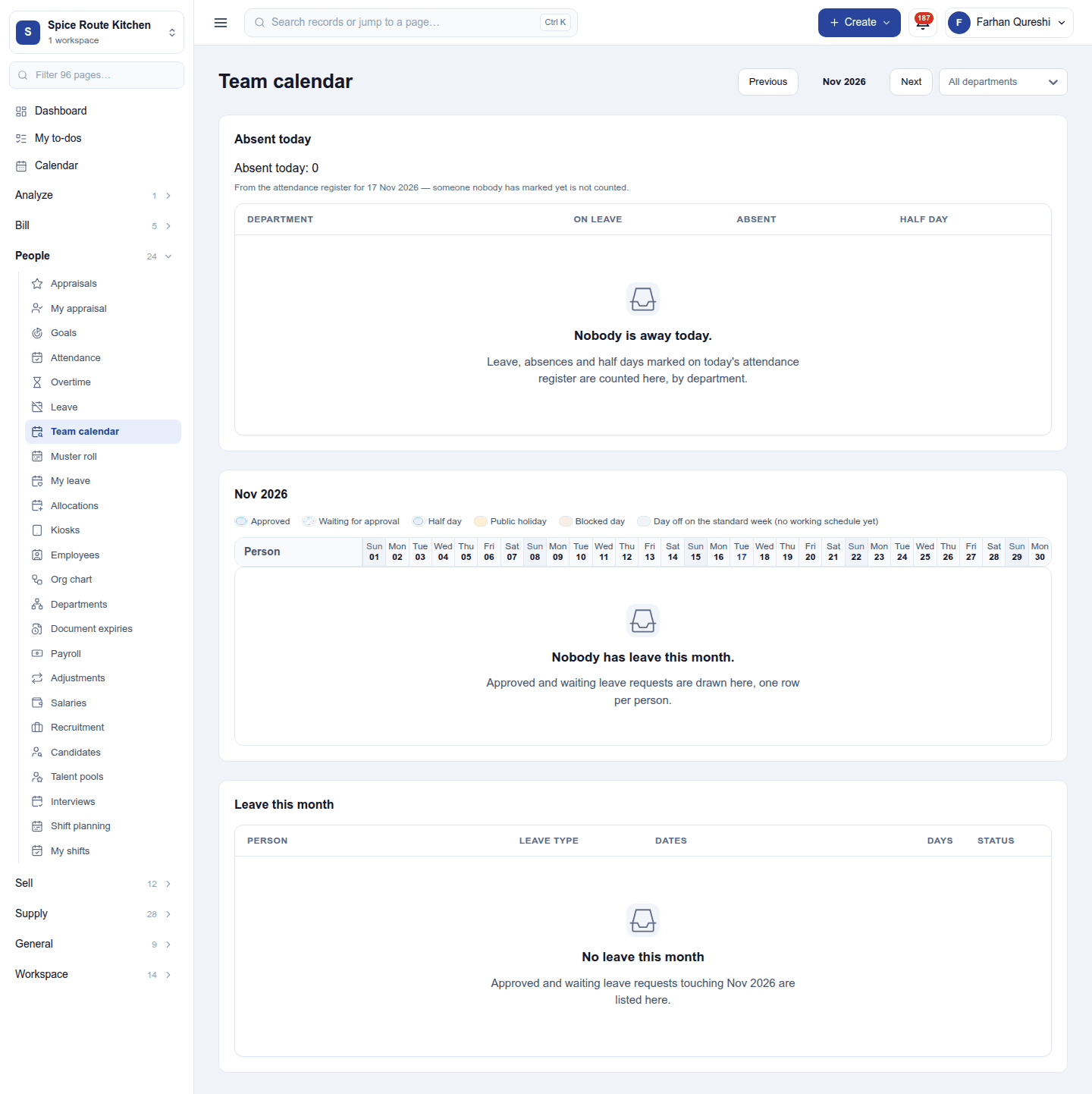
- Team calendar: who is away each day of the month, and who is absent today.
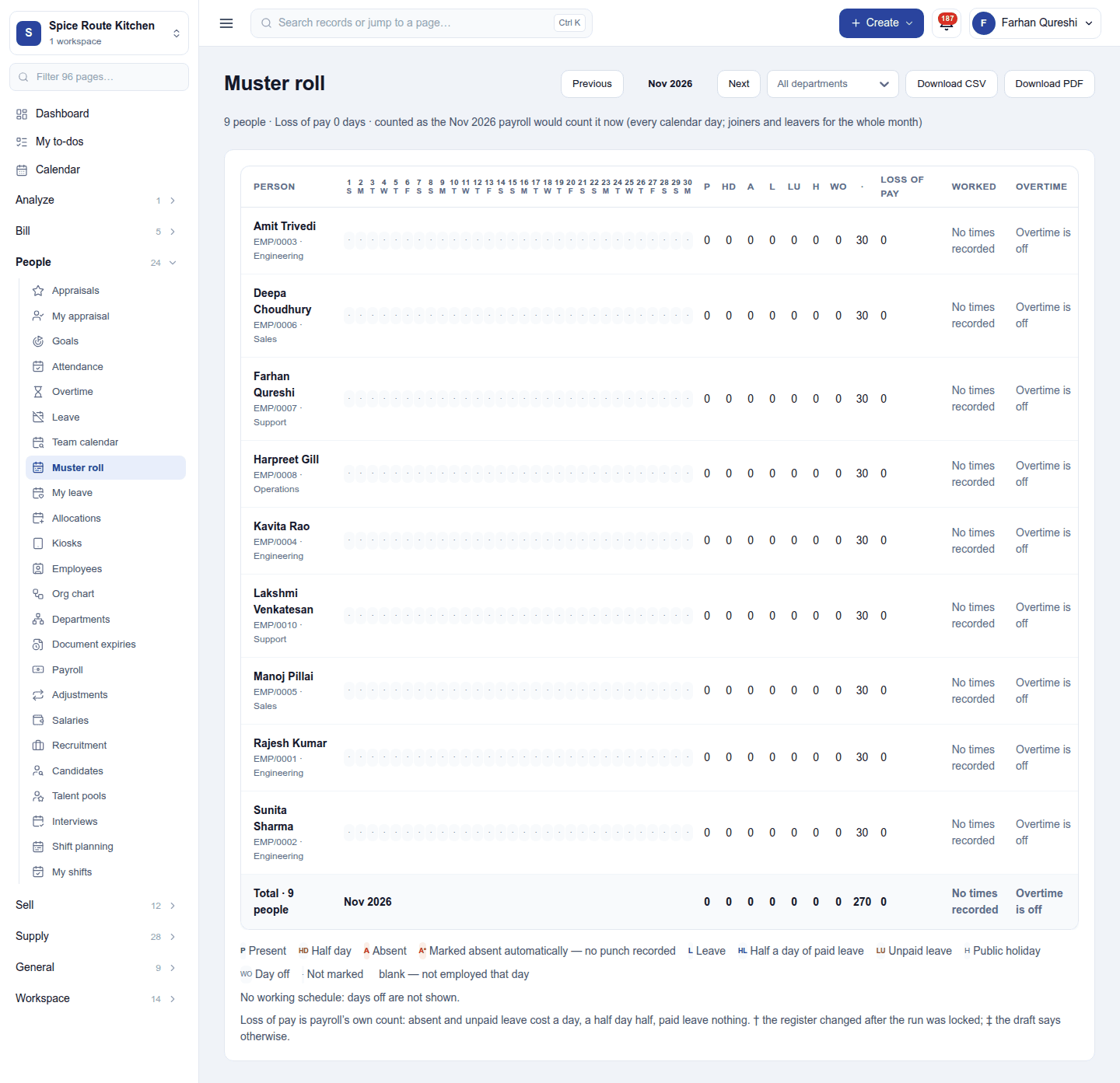
- Muster roll: the month as a grid of people by days, with each day's mark, printable as the statutory register.
Settings
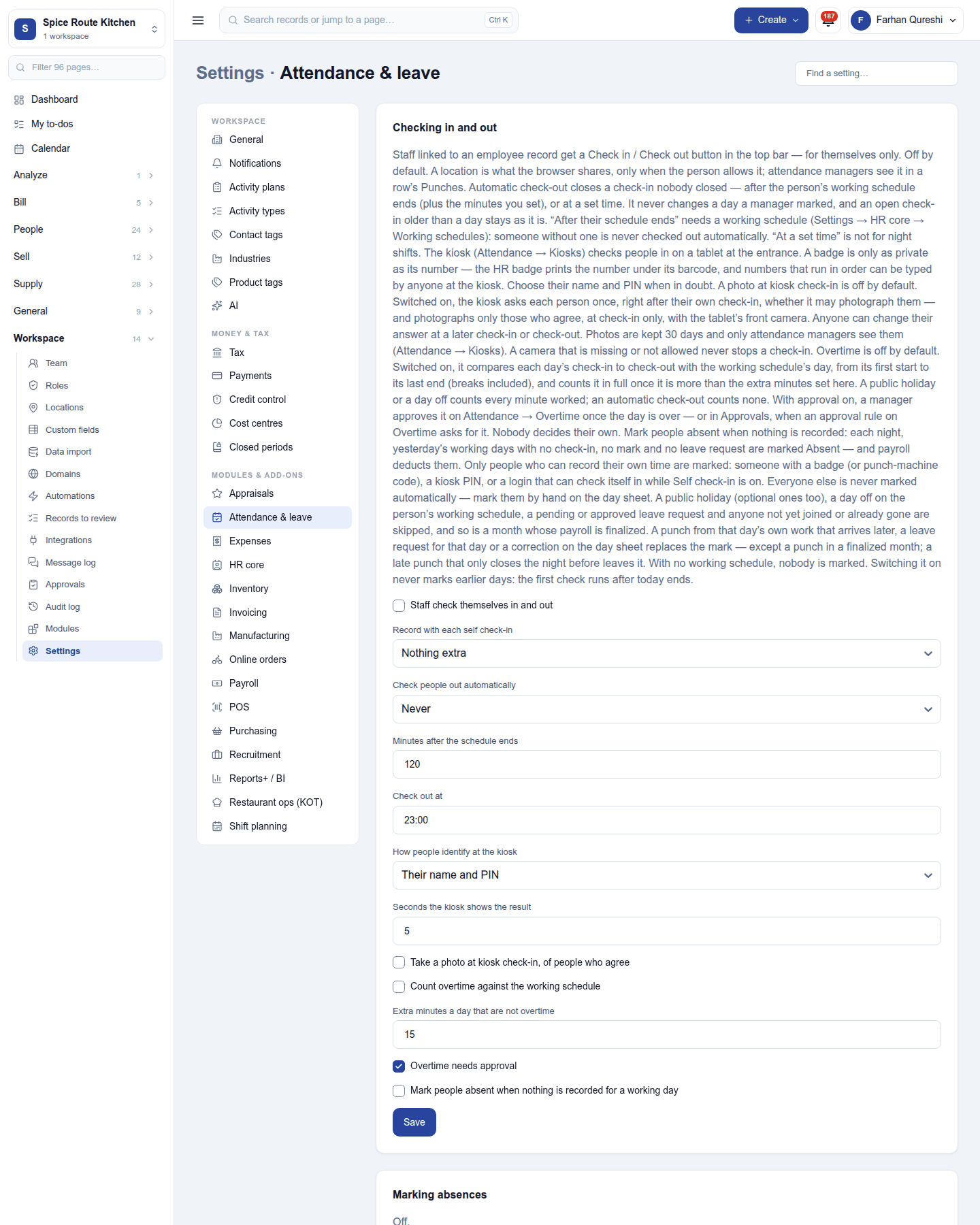
Settings → Attendance & leave:
| Setting | Default | What it does |
|---|---|---|
| Staff check themselves in and out | Off | Shows the check-in button in the top bar. |
| Record with each self check-in | None | Nothing, the IP address, or the IP address and location. |
| Check people out automatically | None | After the schedule ends (with grace minutes, 120), or at a set time (23:00). |
| How people identify at the kiosk | PIN | PIN, badge or PIN, or badge only; the result shows for 5 seconds. |
| Take a photo at kiosk check-in | Off | Of people who agree. |
| Count overtime against the working schedule | Off | Extra minutes beyond a daily threshold (15) count as overtime; Overtime needs approval is on by default. |
| Mark people absent when nothing is recorded | Off | For working days with no mark. |
Leave types, accrual plans, public holidays and blocked days are kept on the same page.
Permissions
| Permission | Allows |
|---|---|
View attendance (attendance.view) |
See attendance, leave and holidays. |
Manage attendance (attendance.manage) |
Record attendance, set up leave and decide leave requests. |
Request leave (attendance.request_own) |
Ask for leave for oneself. |
Check in and out (attendance.punch_own) |
Check oneself in and out. |
Manage attendance kiosks (attendance.kiosks) |
Pair kiosks, and reset, clear or unlock kiosk PINs. |
Approve overtime (attendance.overtime) |
Approve or refuse overtime. |
See the team calendar (attendance.team_calendar) |
See who is away each month and who is absent today. |
Ready-made automations
| Name | Kind | What it does | Starts |
|---|---|---|---|
| Tell me about leave requests | Rule | Tells the workspace owner when someone asks for leave. | On |
Turning it off
The attendance and leave screens leave the menu, and self check-in and kiosks stop. Payroll needs this module, so it must be switched off first. Records and balances are kept.
In the desktop and mobile apps
Not carried.