





































POS
The till: ringing up sales at the counter (or running open tabs on a restaurant floor), taking payment by cash, card, UPI, points or on account, printing receipts, taking returns, and closing the day's cash. It keeps selling when the internet drops.
| At a glance | |
|---|---|
| Type | Business module |
| Group | Sell |
| Needs | Nothing |
| Needed by | Restaurant ops (KOT) |
| Included in | Shops & counters, Restaurant, Hotel / guest house, Clinics, Bakery & sweet shop and other counter packs |
| Offered to | Shops, food, hotels, health counters, salons, gyms, repair shops, wholesale, manufacturing, charity and club counters (not schools, consultancies or agencies) |
| Permissions | Use the till (pos.use) and seven more (see Permissions) |
Switching it on
Workspace → Modules → POS → Enable (needs Manage modules). POS and its boards appear under Sell, and Settings gains a POS page. A pack that sells over a counter has it on from the start.
The till
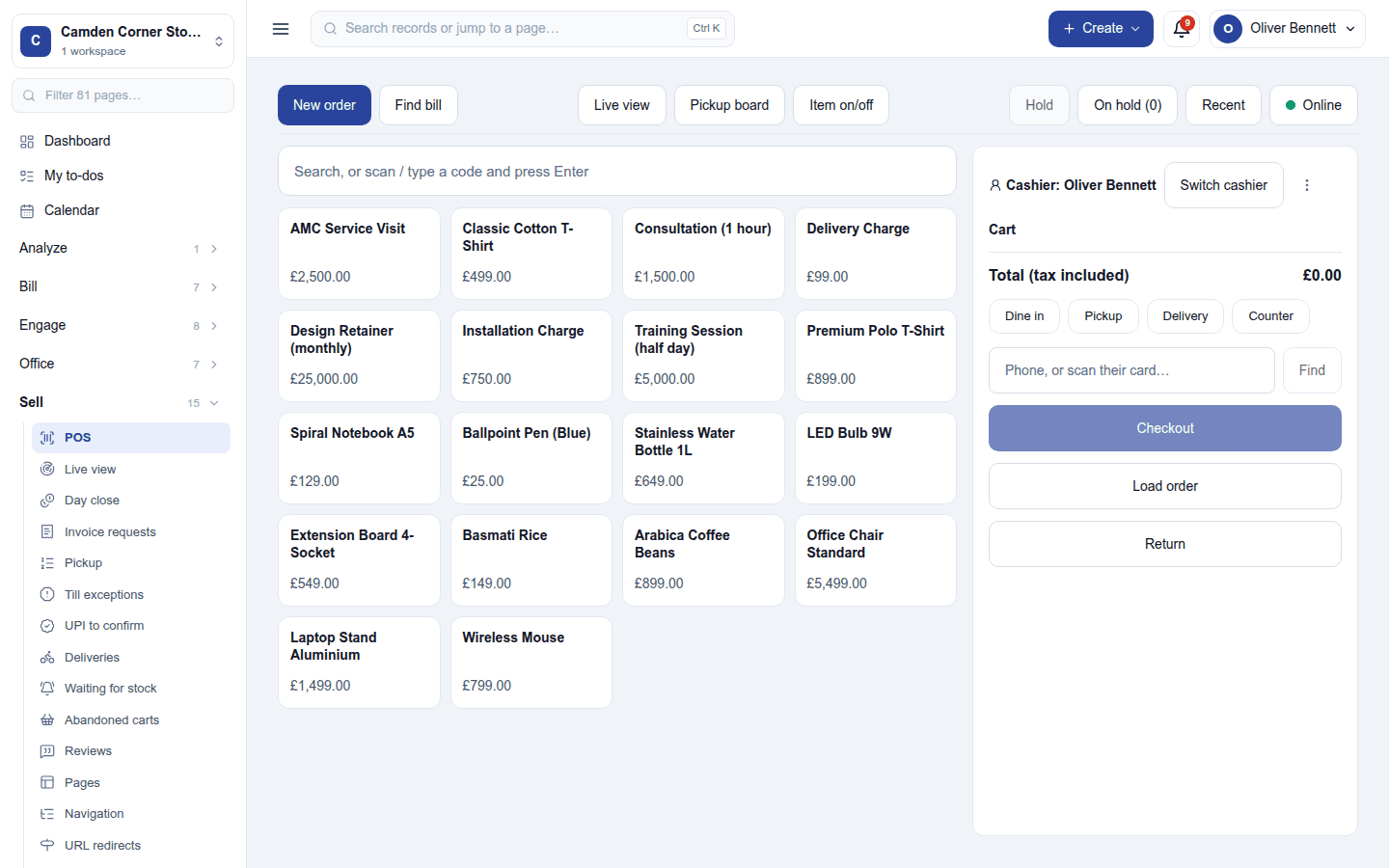
Sell → POS opens the till: the product grid on the left (only products sold on the till), the cart on the right.
- Find items by tapping, by the category strip, or by typing or scanning a name, short code, SKU or barcode and pressing Enter. A product with variants opens a chooser; a product sold by measure takes a typed quantity (0.85 m³, 38.5 kg).
- The cart holds the lines, the customer (Phone, or scan their card… → Find), the order type (Dine in, Pickup, Delivery, Counter), discounts and price changes (with permission), and the total.
- Checkout opens Collect payment: the workspace's payment methods, split across several, round-off, tip, and points for a customer with a loyalty balance (Loyalty). Offline, payment is cash, a static UPI QR (recorded as to be confirmed), a card-terminal slip, or on account within the customer's last-synced limit.
- The top bar: New order, Find bill, Live view, Pickup board, Item on/off, Hold and On hold, Recent, and the till's Online state. Load order settles an order taken elsewhere; Return takes a return.
Each sale is a sales order and an invoice, posted to the books when Accounting posts by itself.
Restaurant mode: the floor
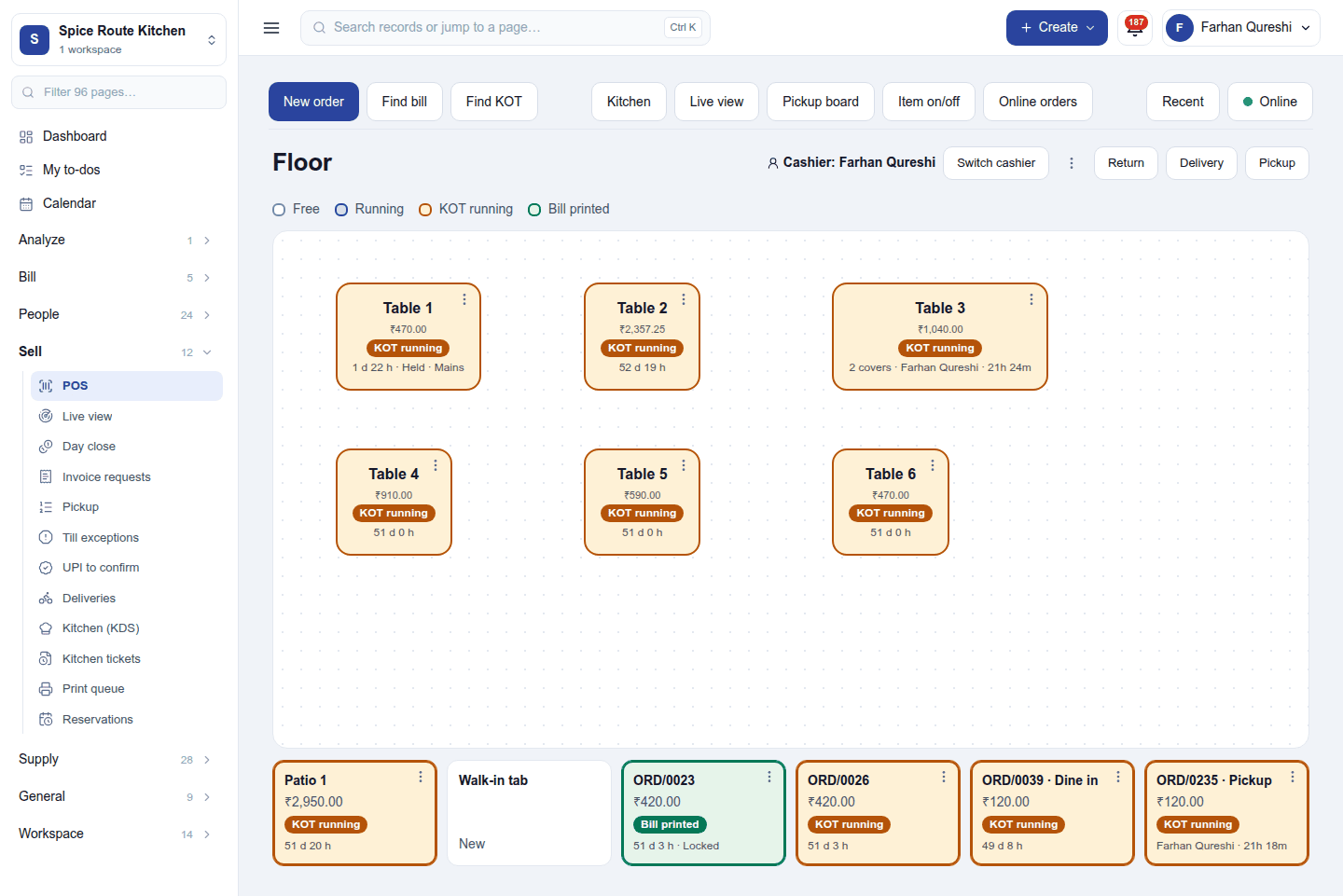
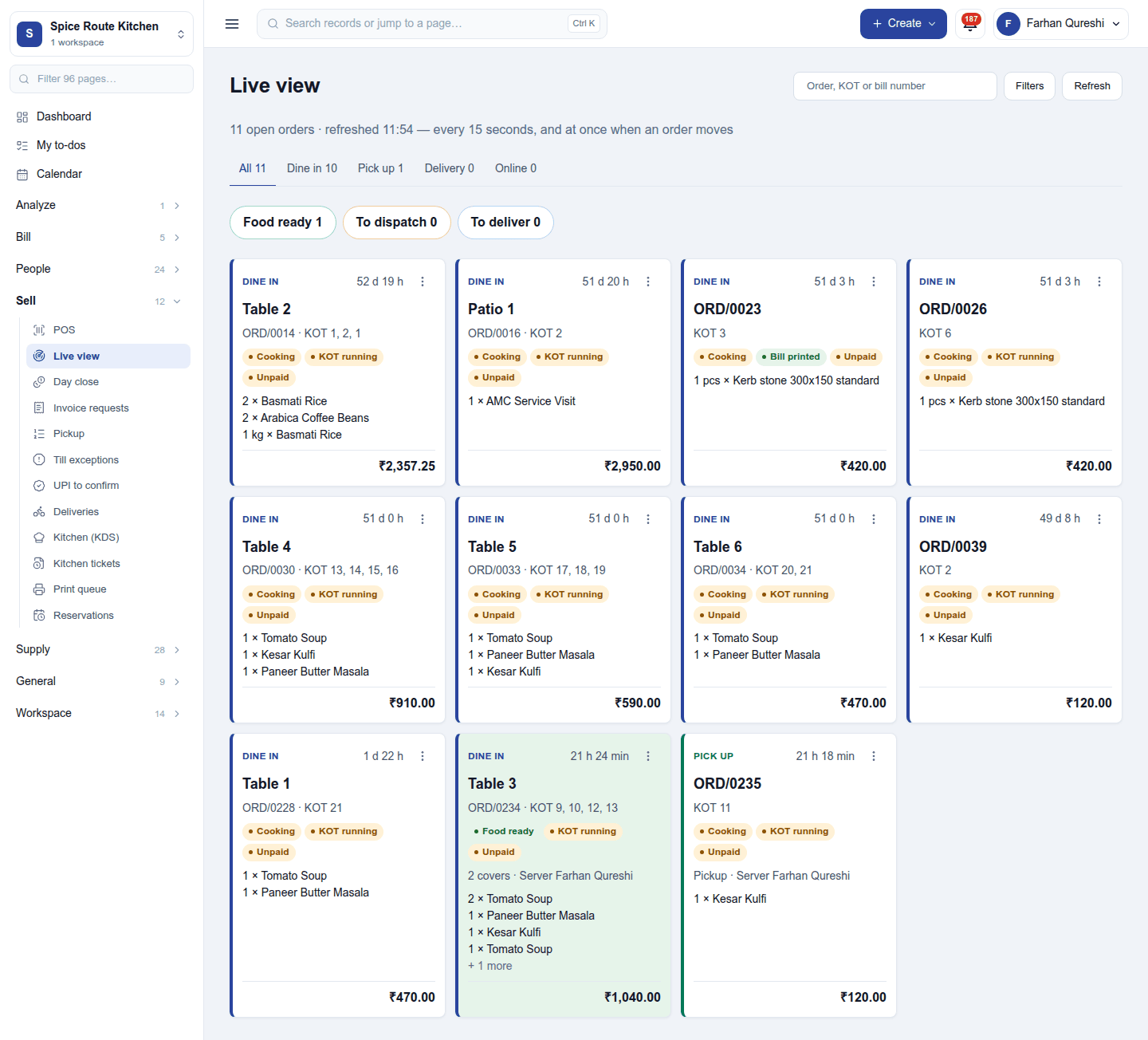
Where the till runs open tabs (the restaurant setting), it opens on the Floor: every table as a tile (Free, Running, KOT running, Bill printed), walk-in, pickup and delivery tabs below. Picking a table opens its tab: add a round and Send round to the kitchen (KOT); Print bill prints Bill, not a tax invoice; Settle takes payment for the whole tab. Covers and the server, cook notes, courses, Transfer table, Merge tables, Split the bill, moving items between tabs and Cancel tab are on the tab and its menu.
The boards
| Board | What it is for |
|---|---|
| Live view | Every open order on one board, by dine-in, pickup, delivery and online, with what is food-ready, to dispatch and to deliver. |
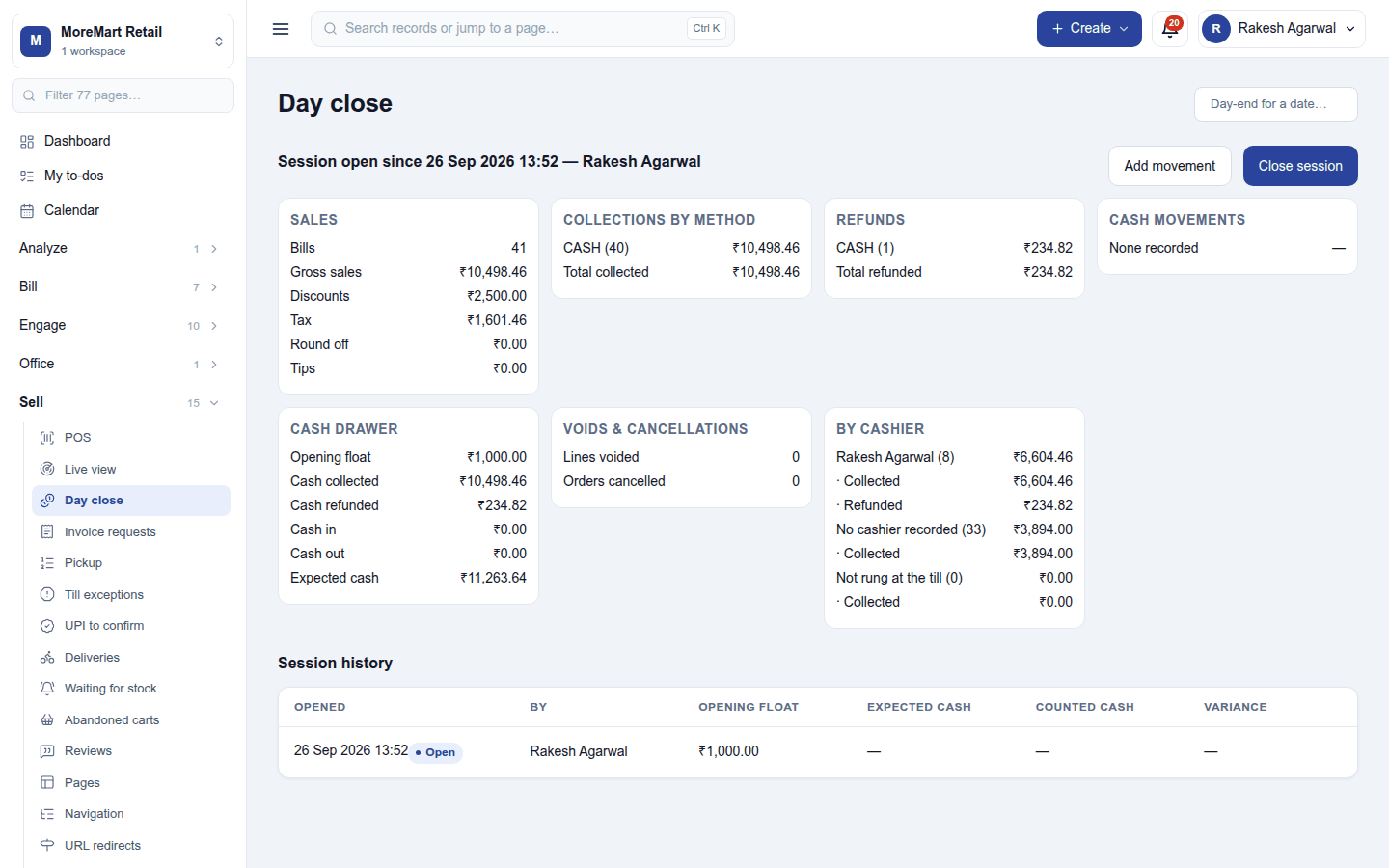
| Day close | The cash session: opening float, sales, collections by method, refunds, cash in and out, expected cash, by cashier; Close session with the counted cash. |
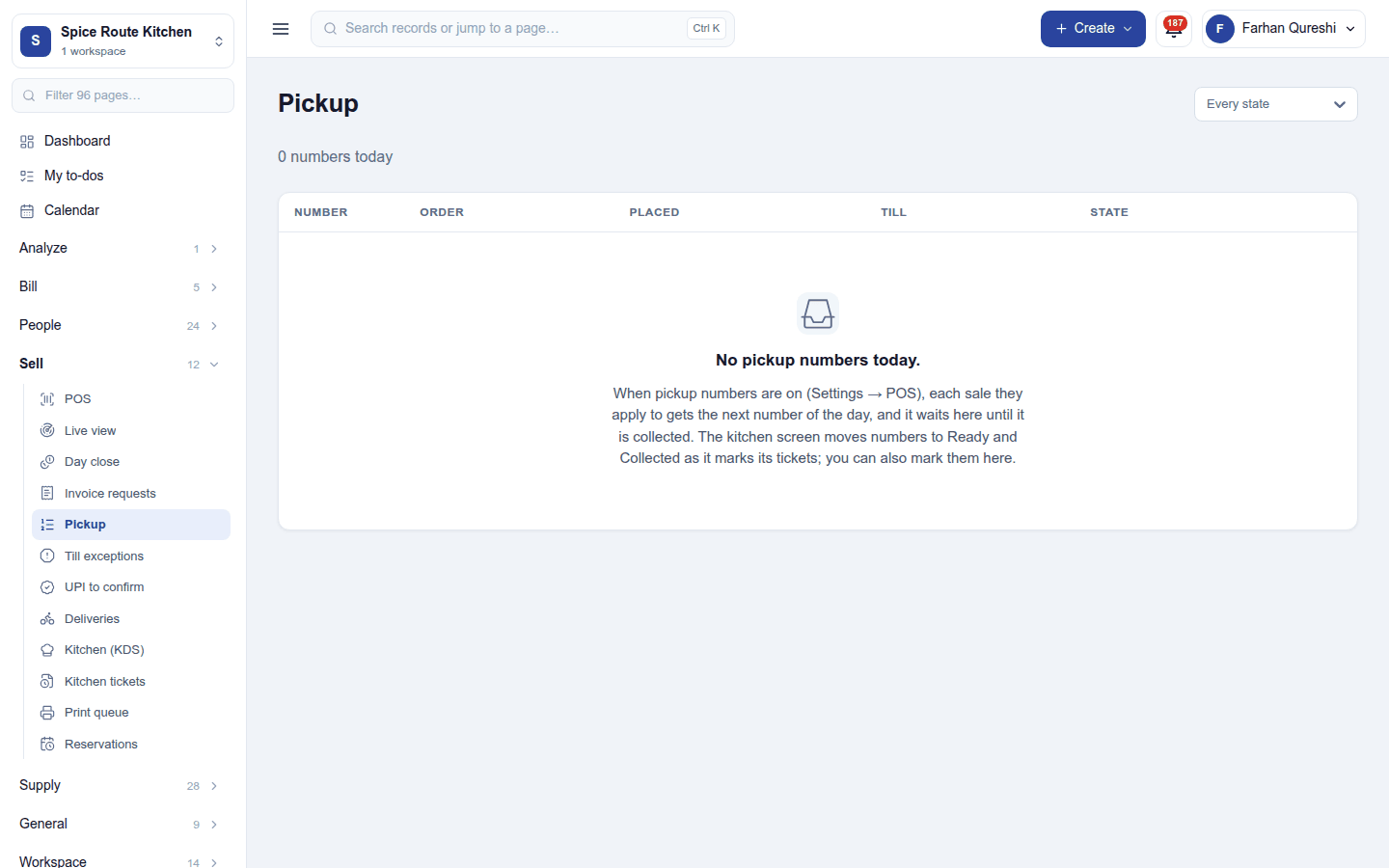
| Pickup | Pickup numbers and the order-ready board shown to waiting customers. |
| Deliveries | Orders going out with the workspace's own riders. |
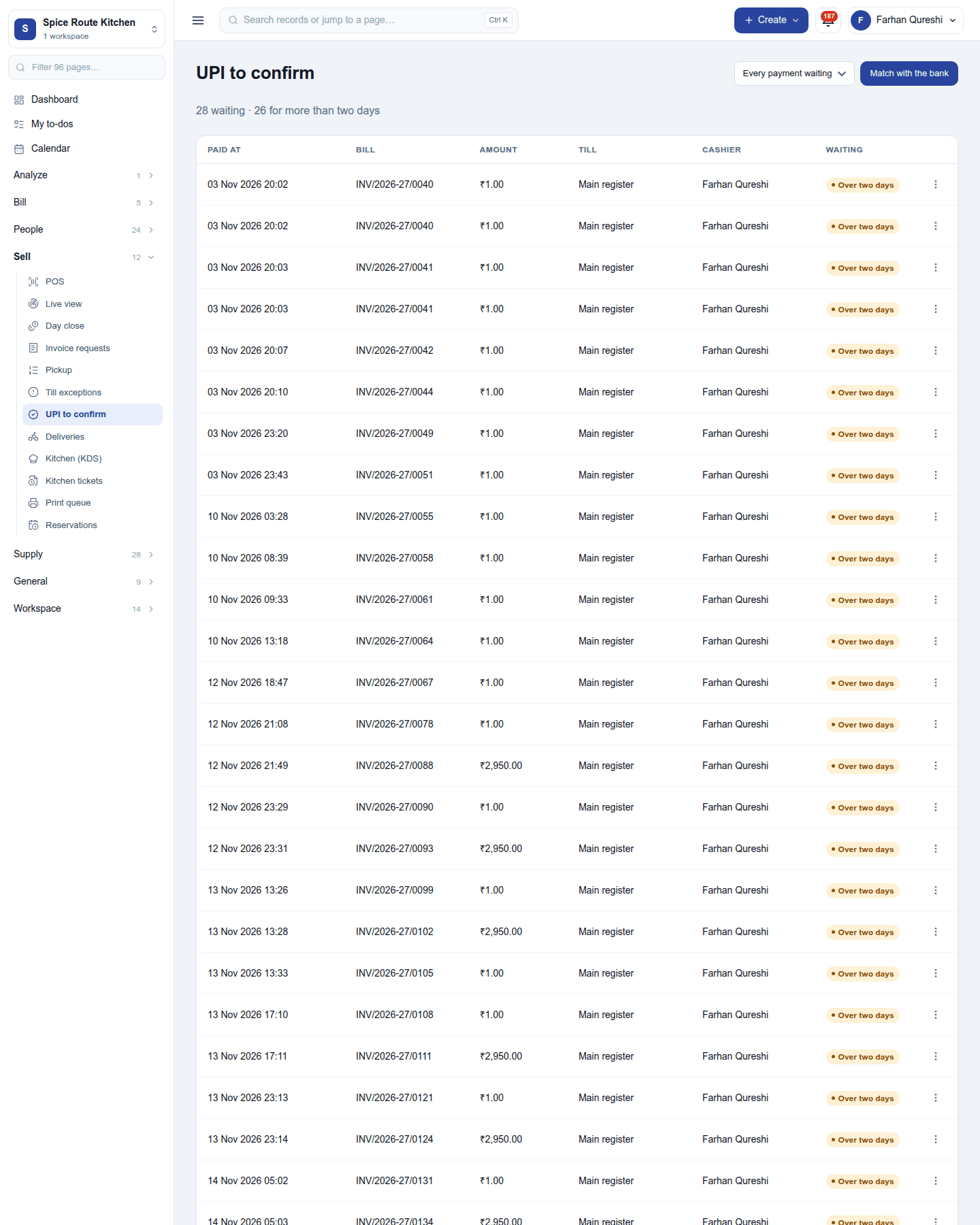
| UPI to confirm | UPI payments taken on the static QR, to confirm against the bank or mark not received. |
| Till exceptions | Sales a till could not send, kept with the reason for a manager. |
| Invoice requests | Customers who asked for a tax invoice from a receipt's QR code. |
Settings
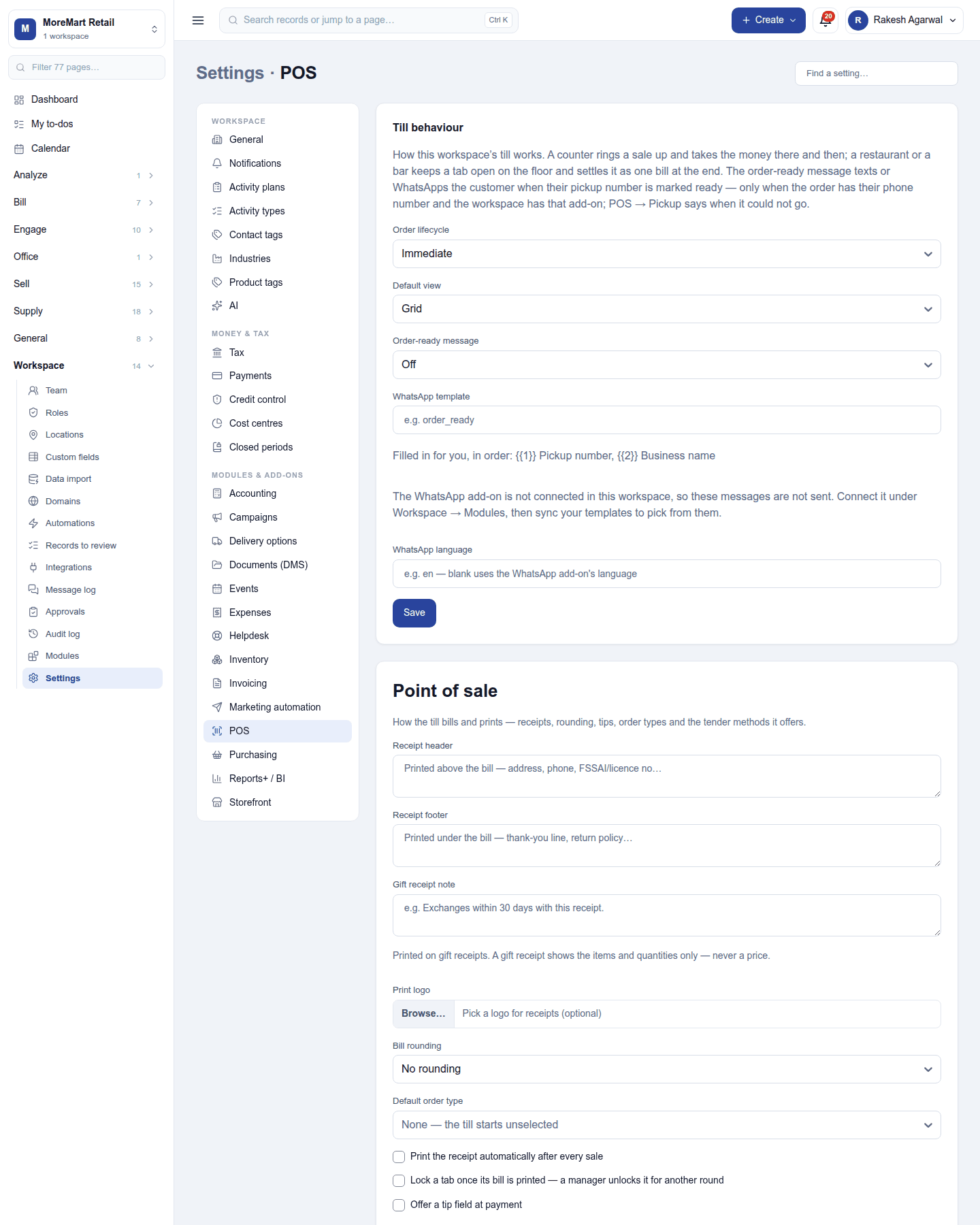
Settings → POS holds:
- Till behaviour: order lifecycle (Immediate: ring and take money; Open tabs: tabs on a floor), the default view (Grid or Floor), and the order-ready message (off, a text message, or WhatsApp, with its template and language).
- Point of sale: receipt header and footer, the print logo, rounding (none, whole unit or the smallest coin), gift receipts, bill printing and locking a printed bill, and the order types and payment methods lists.
- Devices: pairing tills, customer displays and self-order kiosks; several registers, each with its own cash drawer and, optionally, its own ledger account.
- Tips presets, service charge per order type, the cash variance limit, and more.
Permissions
| Permission | Allows |
|---|---|
Use the till (pos.use) |
Ring up sales and take payment. |
Manage till devices (pos.devices) |
Pair, rename and remove till devices. |
Void till sales (pos.void) |
Void a sale made at the till. |
Run cash drawers (pos.cash) |
Open and close cash drawers, record cash in and out (Day close). |
Give till discounts (pos.discount) |
Give a discount on a sale. |
Change till prices (pos.price) |
Change an item's price on a sale. |
Take till returns (pos.refund) |
Take returns and give refunds. |
Close drawers over the limit (pos.cash_manager) |
Close a drawer whose count is off by more than allowed, see every cashier's takings, Till exceptions and UPI to confirm. |
Ready-made automations
| Name | Kind | What it does | Starts |
|---|---|---|---|
| Tell me when a till closes over its cash limit | Rule | Tells the workspace owner when counted cash differs from expected by more than the limit. | On |
Turning it off
The till and its boards leave the menu. Sales, sessions and receipts are kept. Restaurant ops (KOT) needs POS, so it must be switched off first.
In the desktop and mobile apps
- Restaurant desktop app (POS): carries the till, the floor, the kitchen display, Day close and the site hub, and works offline: sales and tab rounds queue on the device and replay in order when the internet returns, and the site's devices keep working together over the local network.
- Captain (waiter's phone): carries the floor, taking orders to the table and the bill, through the site hub or the cloud.