







































Sales orders
The screens for the workspace's sales orders: every order from the till, the online shop, an accepted quotation or a delivery platform, with its progress from ordered to delivered and invoiced, its shipments and returns.
| At a glance | |
|---|---|
| Type | Business module |
| Group | Sell |
| Needs | Nothing |
| Included in | Packs that take orders ahead of delivery (Manufacturing, E-commerce, Wholesale, Clinics, Repairs & field service …) |
| Offered to | Every industry pack |
| Permissions | Core: View orders (orders.view), Create orders (orders.create), Change orders (orders.update), Record deliveries (orders.deliver) |
What the module is, and is not
Orders themselves are Core: the till, the online shop and accepted quotations all write orders whether or not this module is on (most packs sell without it). Sales orders switches on the Sales orders screen and the order page over them. Its permissions are the Core order permissions.
Orders are never typed in blank: they arrive from an accepted quotation, the online shop, the till, a delivery platform, an import or the API. The empty list says so: Orders appear here as they are placed.
Switching it on
Workspace → Modules → Sales orders → Enable (needs Manage modules). Sales orders appears under Sell.
The list
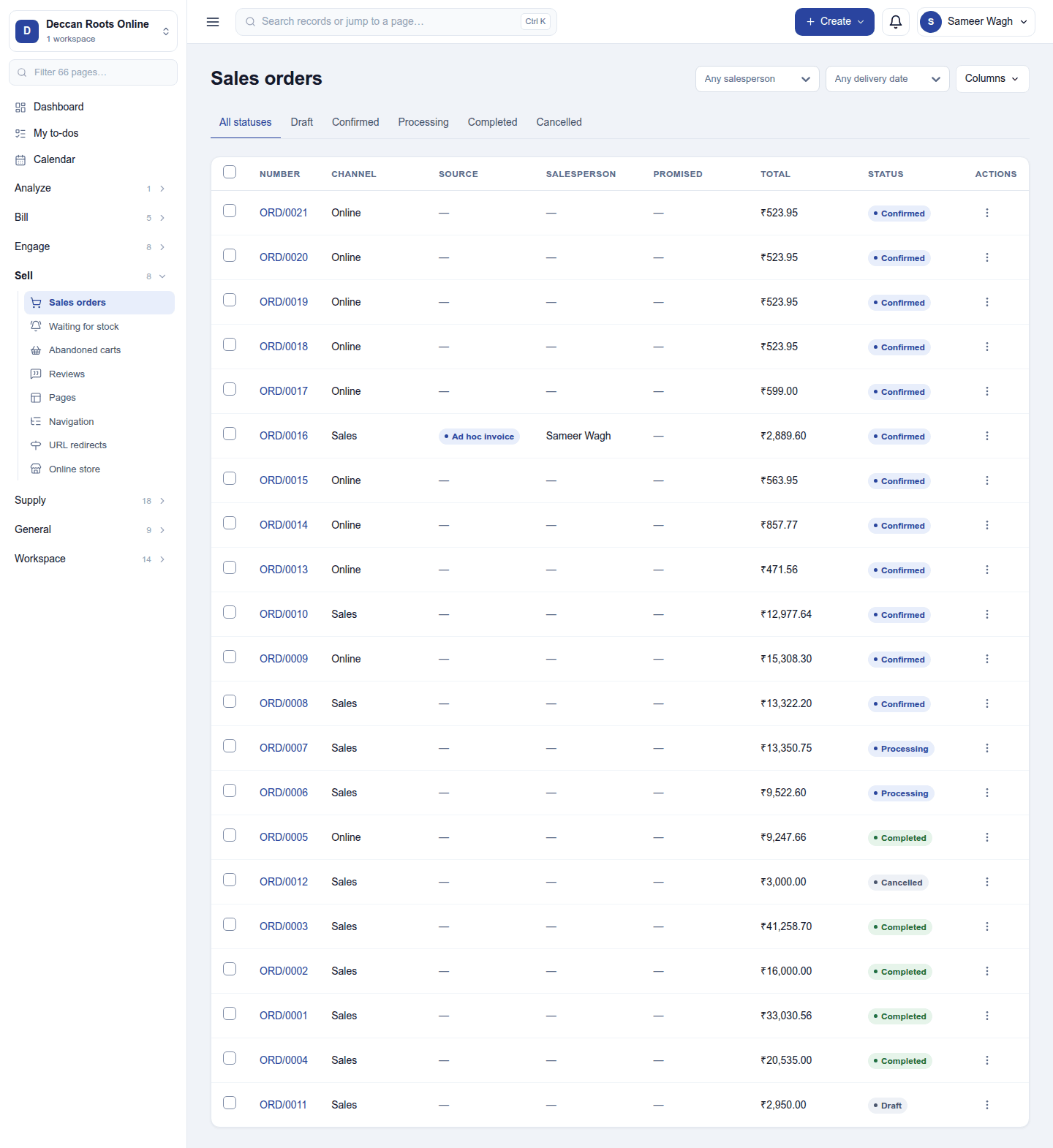
Sell → Sales orders lists every order with its number, channel (Sales, Online, POS …), source (the quotation or document it came from), salesperson, promised date, total and status. The tabs filter All statuses / Draft / Confirmed / Processing / Completed / Cancelled; the header filters by salesperson and delivery date and chooses the Columns. Late orders are marked Late.
Tick rows to send one WhatsApp template to each of up to 100 orders (with WhatsApp). A row's ⋮ menu: View, Approvals (an order waiting for approval), Create invoice, Cancel order and WhatsApp. Cancelling an order cancels the service jobs raised from it that have not started, and says which it kept.
An order
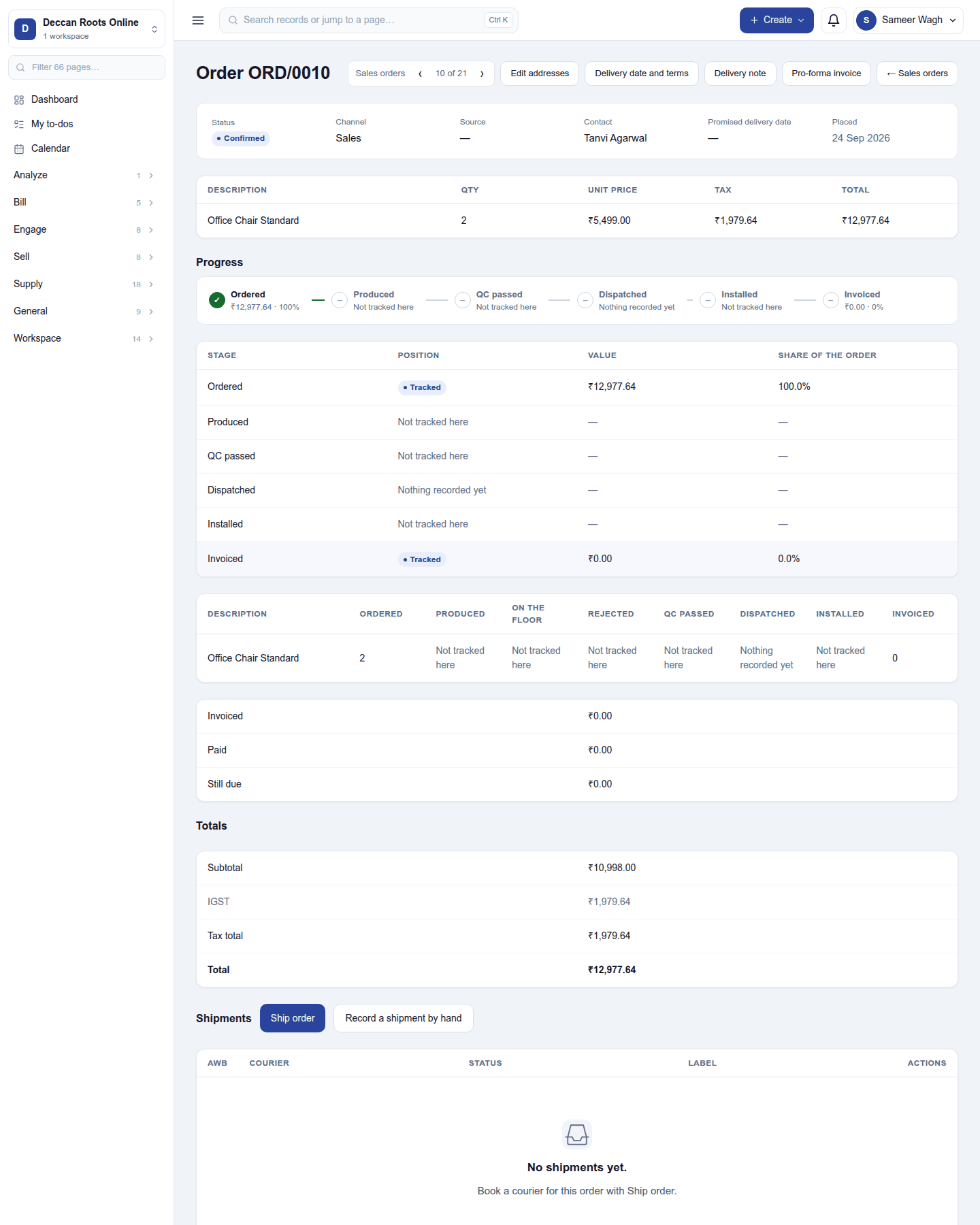
The header carries Edit addresses, Delivery date and terms (the promised date and delivery terms), Delivery note and Pro-forma invoice, and steps to the next and previous order. Below:
- Status, channel, source, contact, where it is delivered and billed, the promised date and when it was placed, then its lines with quantity, price, tax and total.
- Progress: Ordered → Produced → QC passed → Dispatched → Installed → Invoiced, as a strip and line by line. A stage the workspace does not track says Not tracked here.
- Invoiced, paid and still due, then the Totals.
- Shipments: Ship order books a courier (with a courier add-on module such as Shiprocket); Record a shipment by hand for a courier booked elsewhere; delivery on the workspace's own vehicle with Fleet. Each shipment's e-way bill number can be recorded.
- Returns: return shipments and the credit notes they raise.
- With Invoicing's progress bills on: down payments, progress bills and retention on large orders.
- Service jobs raised from the order (with Work orders).
An order moves once. Two people moving the same order at the same moment cannot both apply; the second is told it has already moved.
Approval
Where an approval rule covers sales orders (Workspace → Approvals), a new order waits as a Draft with a pending request until it is approved. It cannot be invoiced, shipped or delivered while it waits.
Permissions
| Permission | Allows |
|---|---|
View orders (orders.view) |
See orders, their deliveries and Online orders. |
Create orders (orders.create) |
Take new orders (at the till or from a quotation). |
Change orders (orders.update) |
Change, dispatch and cancel orders; ship and invoice them. |
Record deliveries (orders.deliver) |
Record who received an order's goods on its delivery note. |
Ready-made automations
| Name | Kind | What it does | Starts |
|---|---|---|---|
| Remind the salesperson of orders promised for tomorrow | Rule | The day before an order's promised date, tells its salesperson while it is still open. | On |
| Email an update on the order | Action (on an order) | Tells the customer their order is being worked on. | On |
Turning it off
The Sales orders screen leaves the menu. Orders keep being written by the till, the shop and quotations, and stay on record.
In the desktop and mobile apps
The restaurant desktop app and the Captain app take orders at the till and the table, offline included; those are sales orders on the server once they sync. The Sales orders screen itself is not in either app.